
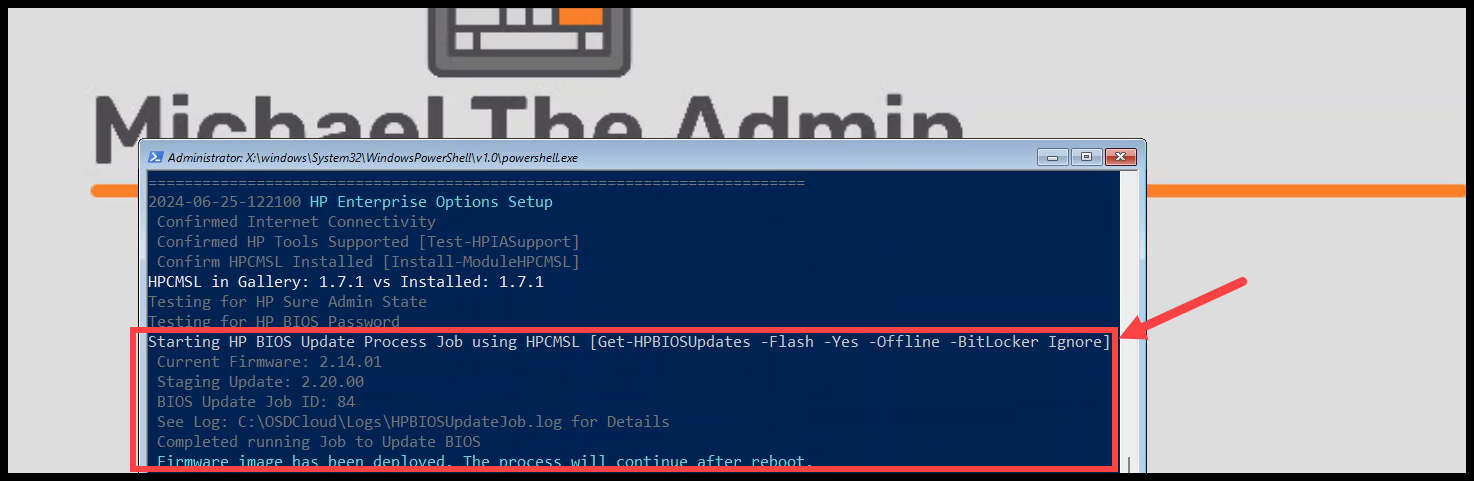

Lets jump in and see how the HP Functions update process works for the TPM and System Firmware (BIOS).
Additional Information #
Check out the Gary Blok - YouTube channel for the below video going through most of this process. Good stuff!!
Starting Information #
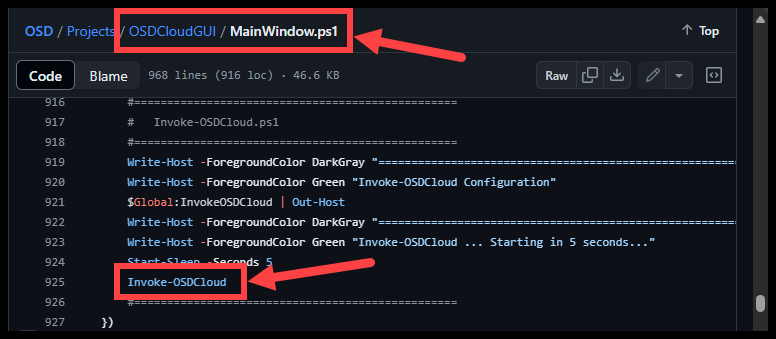
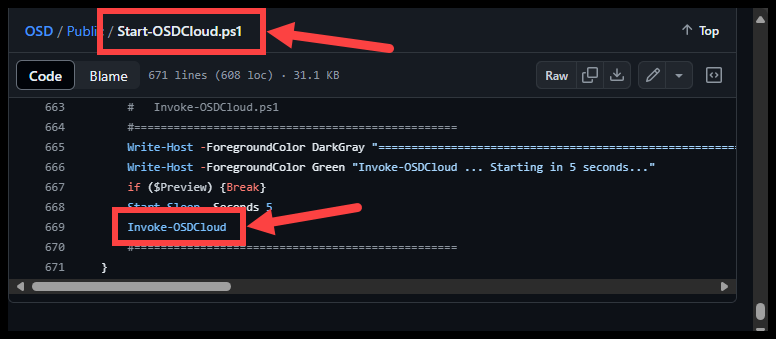
Whether you use ‘Start-OSDCloud’ or ‘Start-OSDCloudGUI’, you ultimately end up calling the function ‘Invoke-OSDCloud’
So lets start there and assume that we are passing the below parameters to it.
- HPTPMUpdate = $true
- HPBIOSUpdate = $true
Invoke-OSDCloud #
So this is where the magic happens!
View the whole functions on Github
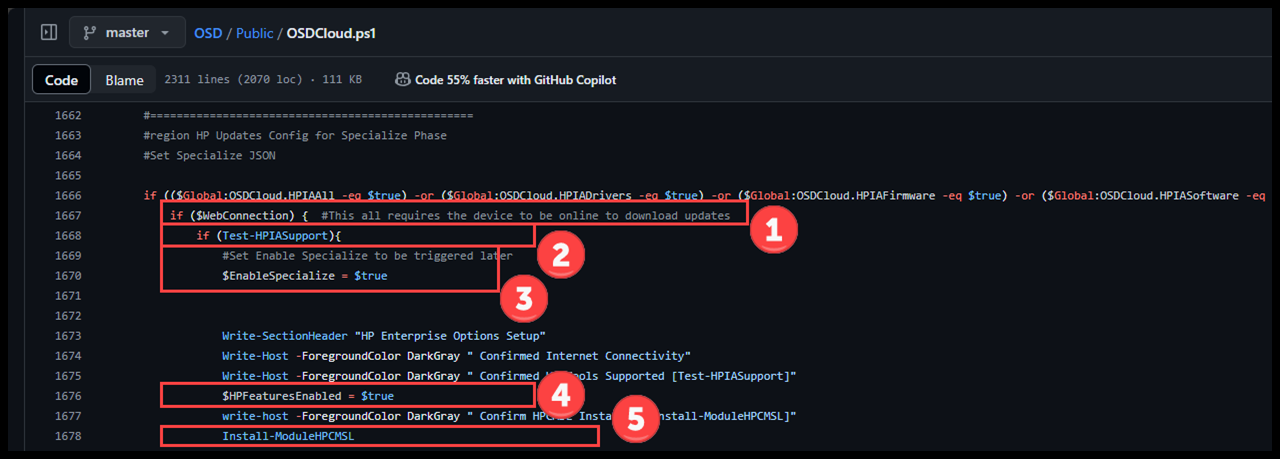
- Make sure we are connected to the internet
- This is required because otherwise we can’t check or download the updates.
- Next we’ll make sure that the System we are running on is supported by HP Imaging Assistant
- Here we set a variable to be used later.
- It will tell the script to add the required lines of code to the Specialize phase of Windows Setup.
- Another variable that we set to tell the script to Save the HP CMSL PowerShell module to the OSDCloud folder
- Now lets install the HP CMSL
Test-HPIASupport #
View the whole function on Github
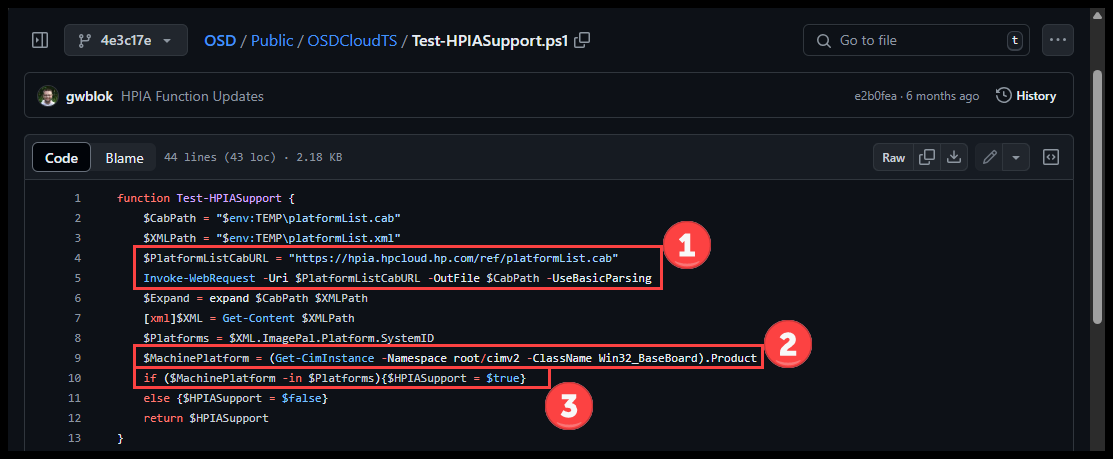
- Download the ‘platformList.cab’ for HPIA
- Get the Machine Platform currently being used
- Check the Machine Platform is in the Support List for HPIA
Install-ModuleHPCMSL #
This function installs the HP CMSL PS module from the PowerShell Gallery if not already installed.
View the whole function on Github
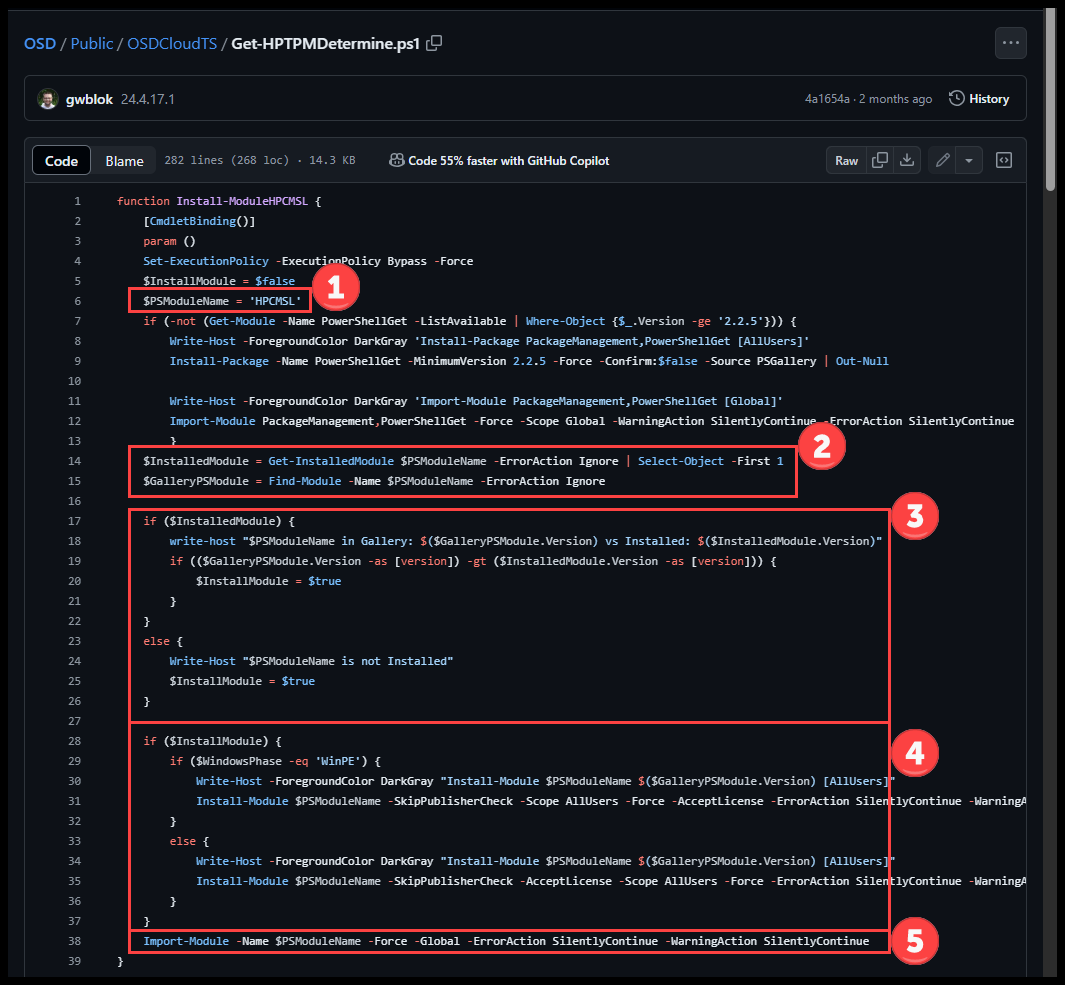
- Set the PS Module name ‘HP CMSL’
- Check if the Module is already installed
- Then get the module from the PSGallery
- If the Module is already installed, check that it is at least the version in the PSGallery
- Whether we need an upgrade or install
- Install the module for
[AllUsers]
- Install the module for
- And finally Import the module for use
Invoke-OSDCloud - BIOS Update #
Back to the ‘Invoke-OSDCloud’ function. Lets work on the BIOS update.
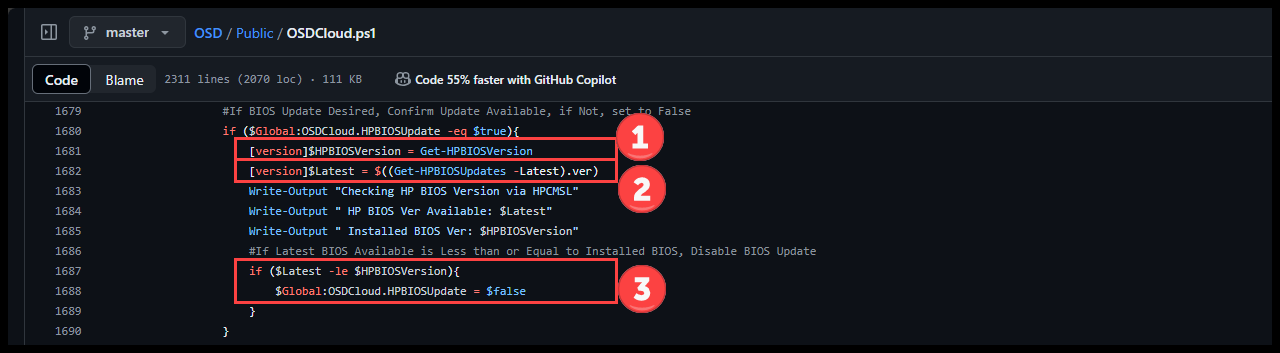
- Get the currently installed BIOS version
- Get the latest available BIOS version
- Do one more check if an update is needed based on the above values
- If the Latest version is already installed, Set the $HPBIOSUpdate variable to $false
HP Sure Admin - On #
We need to check if HP Sure Admin Mode is on. With Sure Admin Mode on, we won’t be able to modify BIOS Settings, upgrade the TPM, or upgrade the BIOS while in WinPE. But we may still be able to upgrade the BIOS later by using the Windows Update Version.
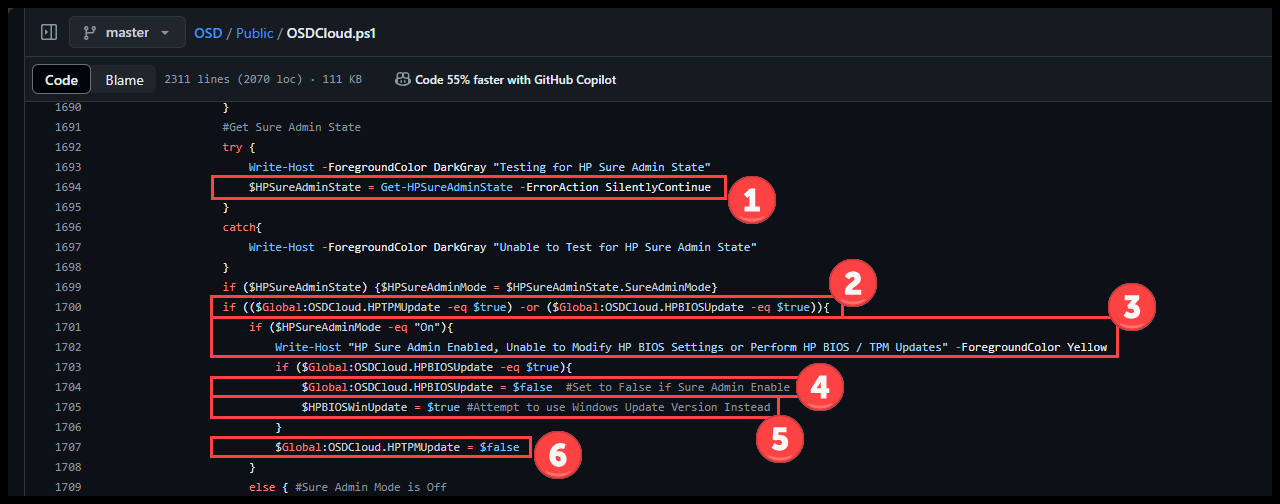
- Get the current HP Sure Admin Mode state
- Check if TPM Update or BIOS Update options are $true
- Check if HP Sure Admin Mode is On
- Set the option to Update the BIOS to $false because Sure Admin is On
- Set the $HPBIOSWinUpdate variable to $true. We can still attempt to update the BIOS using the Windows Update Version in a later step
- Set the option to Update the TPM to $false because Sure Admin is On
HP BIOS Password - Set #
If HP Sure Admin Mode is Off, we then need to check if a BIOS Password is set. We won’t be able to update the BIOS while in WinPE if a password is set.
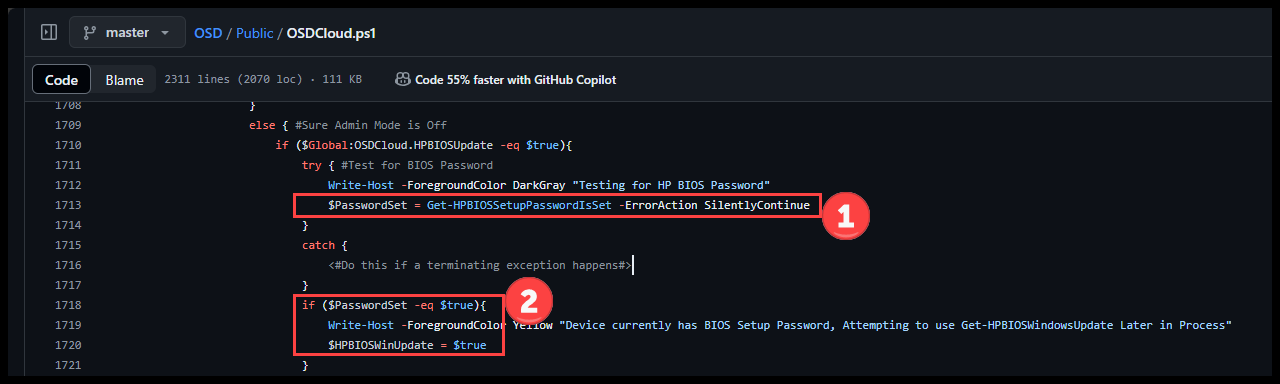
- Check if a BIOS Setup password is set
- If $true
- Set the $HPBIOSWinUpdate variable to $true. We can still attempt to update the BIOS using the Windows Update Version in a later step
HP Sure Admin - Off | HP BIOS Password - Not Set #
If HP Sure Admin Mode is Off and there is no HP BIOS Setup password set, we can attempt to stage the BIOS update while in WinPE. And on the next reboot, the BIOS will update.
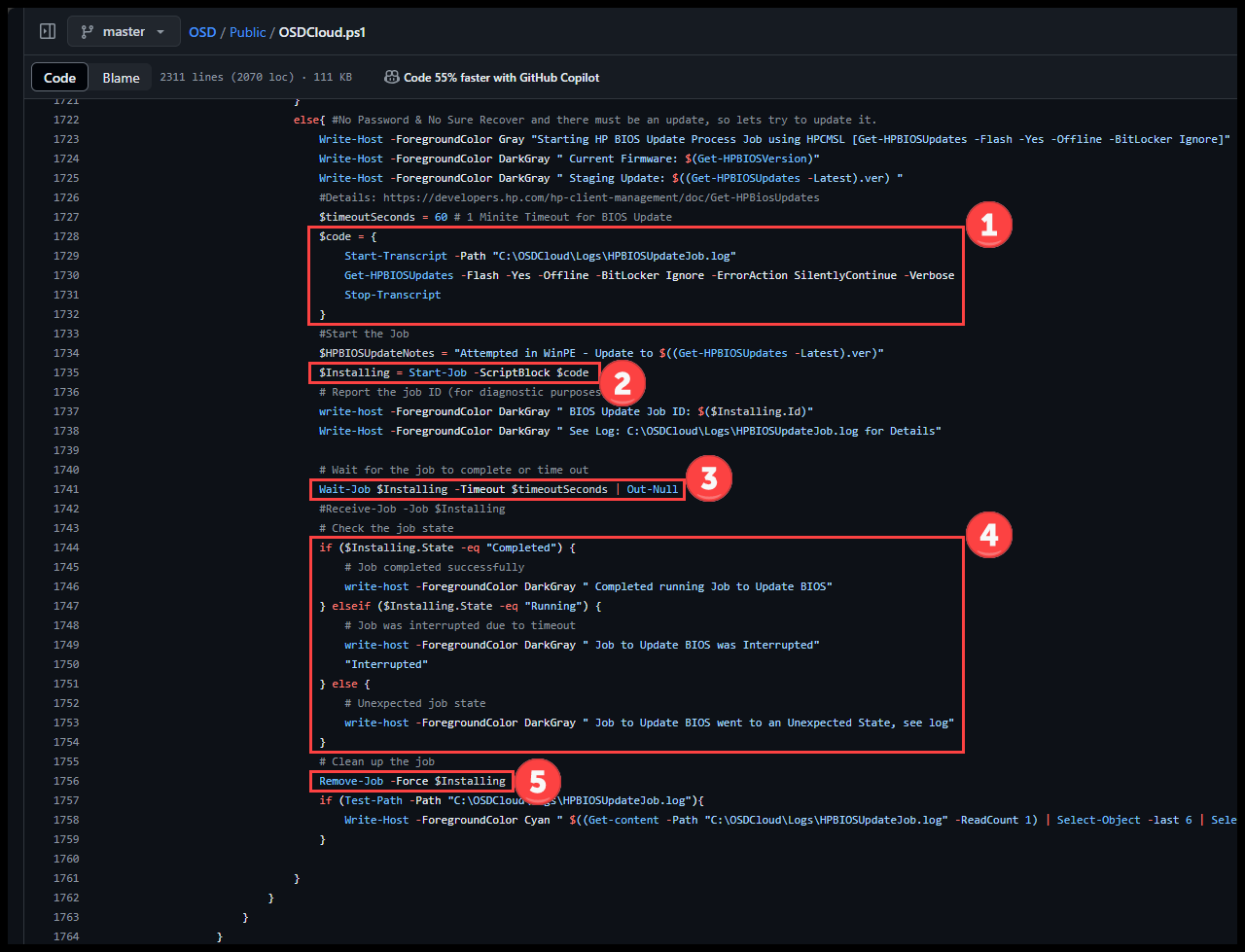
- Stage the code that will run to perform the BIOS Update
- Start a transcription in the OSDCloud logs folder
- Use the ‘Get-HPBIOSUpdates’ function from the HP CMSL module to perform the update
- HP Developers Portal | Get-HPBIOSUpdates
- -Flash
- BIOS update will be flashed onto the current system
- -Yes
- Bypass the ‘Are you sure you want to flash’ prompt
- The wording in the documentation ‘Description’ makes it seem like if you set this switch parameter, then you will be prompted. But if you look at the code of the module, not setting it will prompt.
- -Offline
- Uses the offline mode to flash the BIOS instead of the default online mode. In offline mode, the actual flash will occur after reboot at pre-OS environment.
- -BitLocker Ignore
- Skips the BitLocker check
- Stop the Transcription
- Run the above code in a background job
- Wait for the background job to complete. Timeout is set to 60 seconds
- Check the state of the job and display the results
- Delete the background job
Invoke-OSDCloud - TPM Update #
Now lets stage the TPM Update package to be ran during Windows Setup. This will only run if HP Sure Admin Mode is Off.
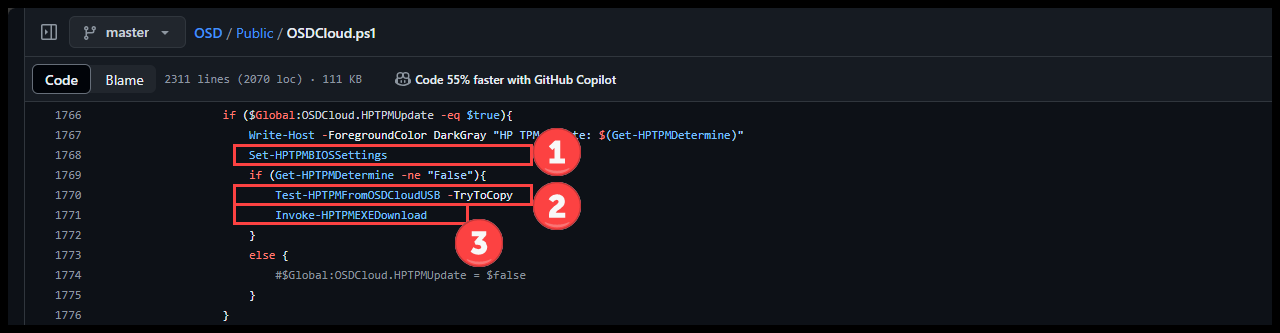
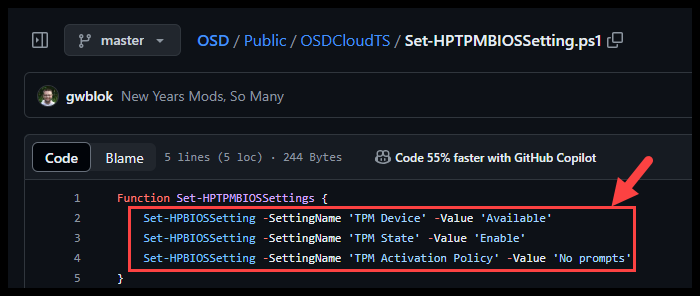
- Modify some BIOS Settings to ensure the TPM is enabled and ready for the update
- TPM Device = Available
- TPM State = Enable
- TPM Activation Policy = No prompts
- OSD/Public/OSDCloudTS/Set-HPTPMBIOSSetting.ps1 at master · OSDeploy/OSD (github.com)
- Copy the either TPM Upgrade package from any available OSDCloudUSB drives to C:\OSDCloud\HP
- Download and Extract the TPM Upgrade package
Invoke-HPTPMEXEDownload #
Download the needed TPM Upgrade Softpaq
View the function on Github
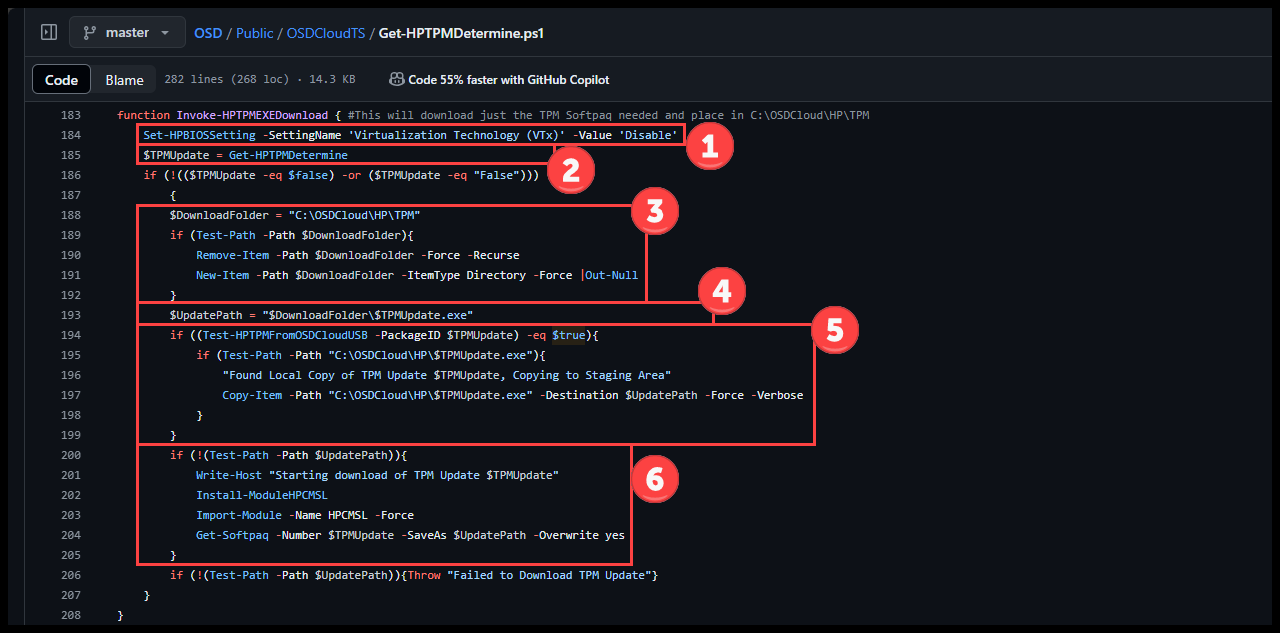
- Disable the HP BIOS Setting ’ Virtualization Technology (VTx)
- This needs to be Disabled for the update to run
- Get the required TPM Update softpaq
- Set the Download folder
- Delete and Recreate the folder if it already exists
- Set the Update file path -
<SoftpaqID>.exe - Check if the needed Softpaq exists on any available OSDCloudUSB drives
- Copy the files to
C:\OSDCloud\HP\TPM
- Copy the files to
- If the Softpaq wasn’t found on an OSDCloudUSB
- Install and Import the HP CMSL module
- Then use the ‘Get-Softpaq’ function to download the TPM Update Softpaq
Invoke-OSDCloud - HP.JSON #
Now that the TPM and BIOS updates are ready to go, lets create a Json file with that actions needing to be performed either during the Specialize or SetupComplete phase.
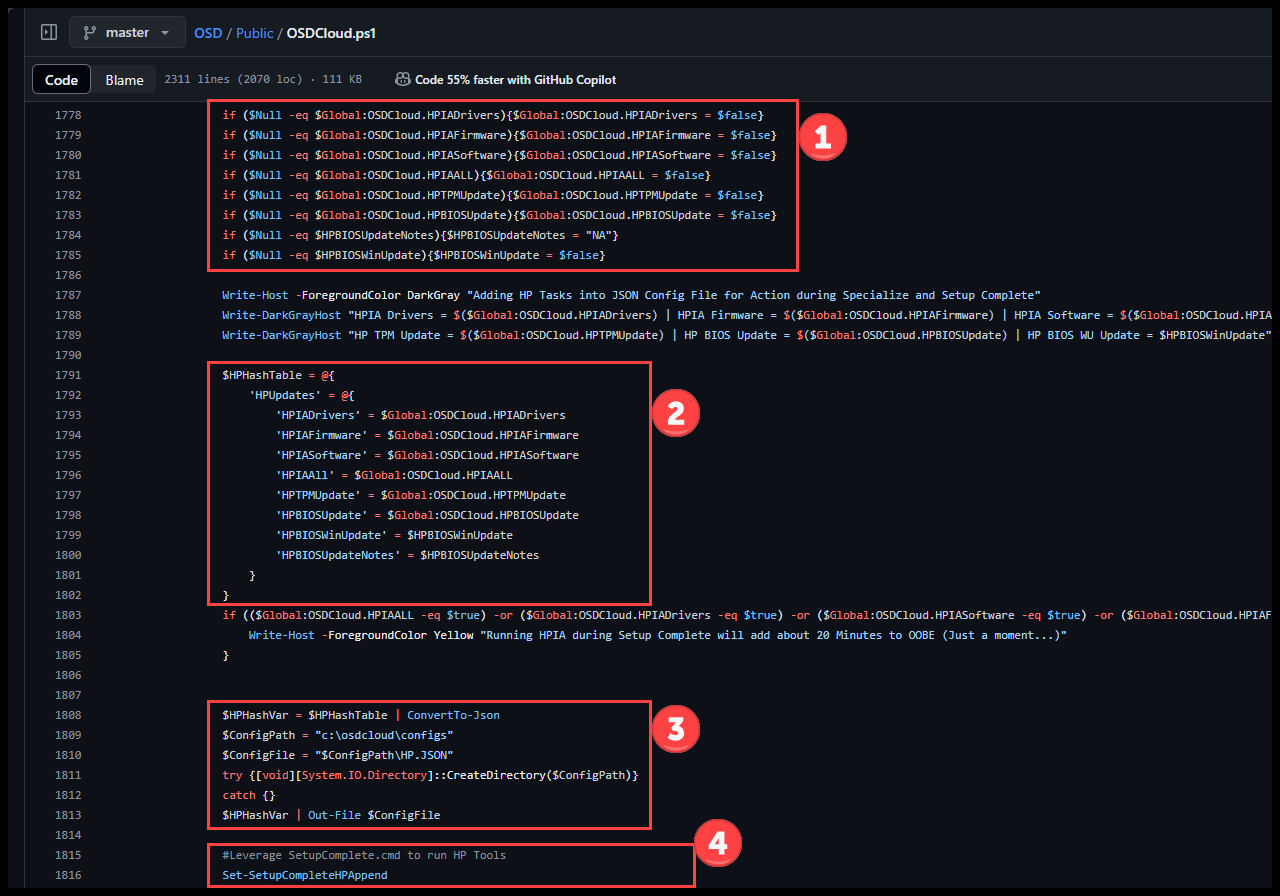
- Just incase any of the options were never set are $null, mark them $false
- Build a Hash Table of all HP Options values
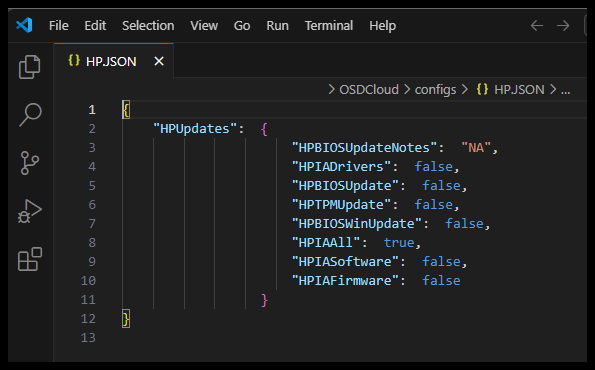
- Create a file
C:\OSDCloud\Configs\HP.JSONand output the Hash Table to it. - Run the ‘Set-SetupCompleteHPAppend’ function.
Set-SetupCompleteHPAppend #
This function Adds the necessary lines of PowerShell code to the SetupComplete.ps1 file to run the variable HP Functions options.
View the function on Github
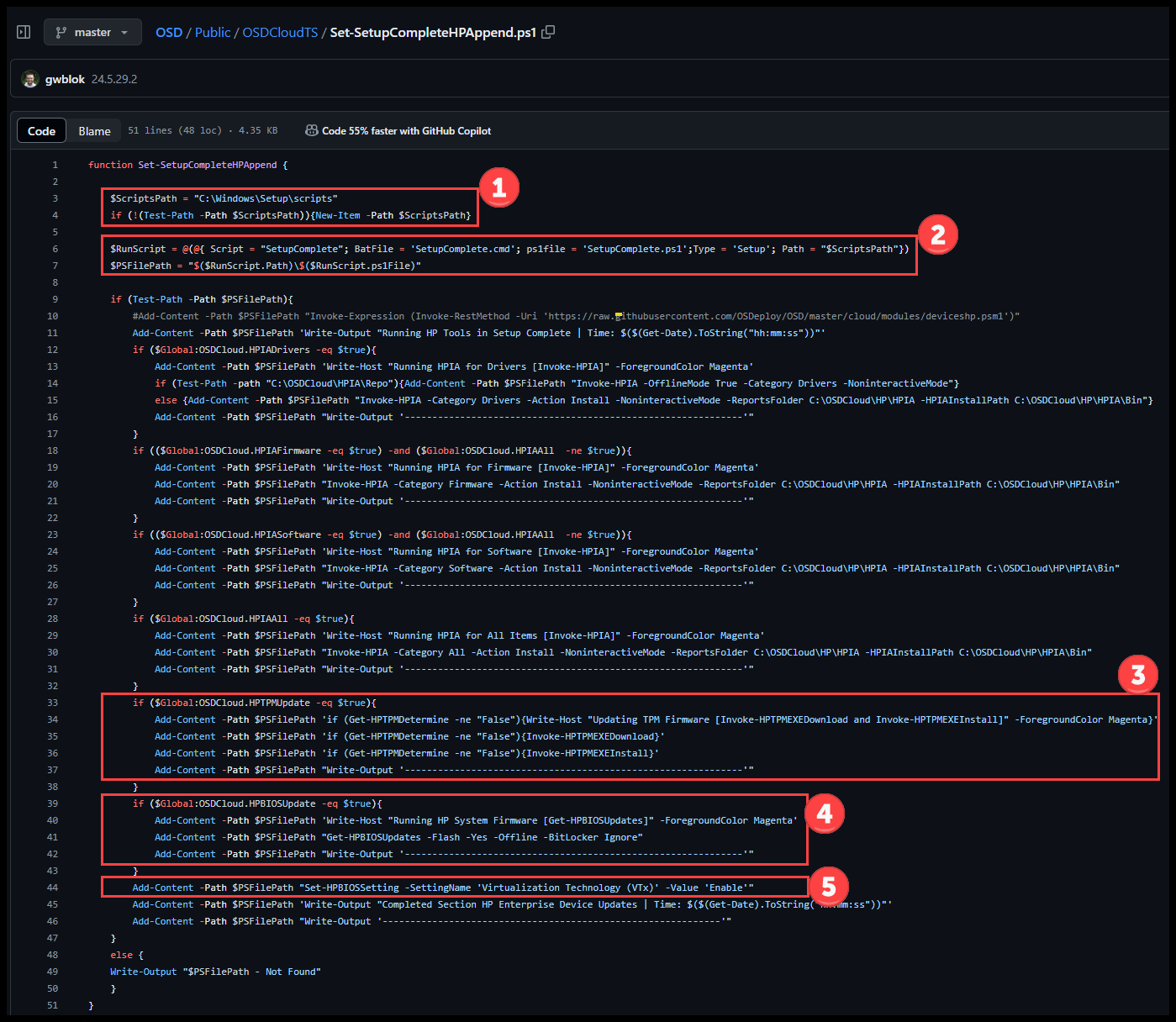
- Set the SetupComplete scripts path and create it
- Create an array with the Names of the Files and Paths for the SetupComplete scripts
- Add the lines of PowerShell needed to update the TPM
- Check if an update is needed, then Download and Install
- Add the lines of PowerShell needed to update the BIOS
- Enable the HP BIOS Setting ’ Virtualization Technology (VTx)
- Setting it back after we disabled it to update the TPM
Invoke-OSDCloud - EnableSpecialize #
Continuing down the Invoke-OSDCloud function

- Check that
$EnableSpecializeis$true- This is set to $true at the beginning of the HP Enhancements section
- Run the ‘Set-OSDCloudUnattendSpecializeDev’ function
Set-OSDCloudUnattendSpecializeDev #
This function will setup the Unattend File to be ran during Windows Setup
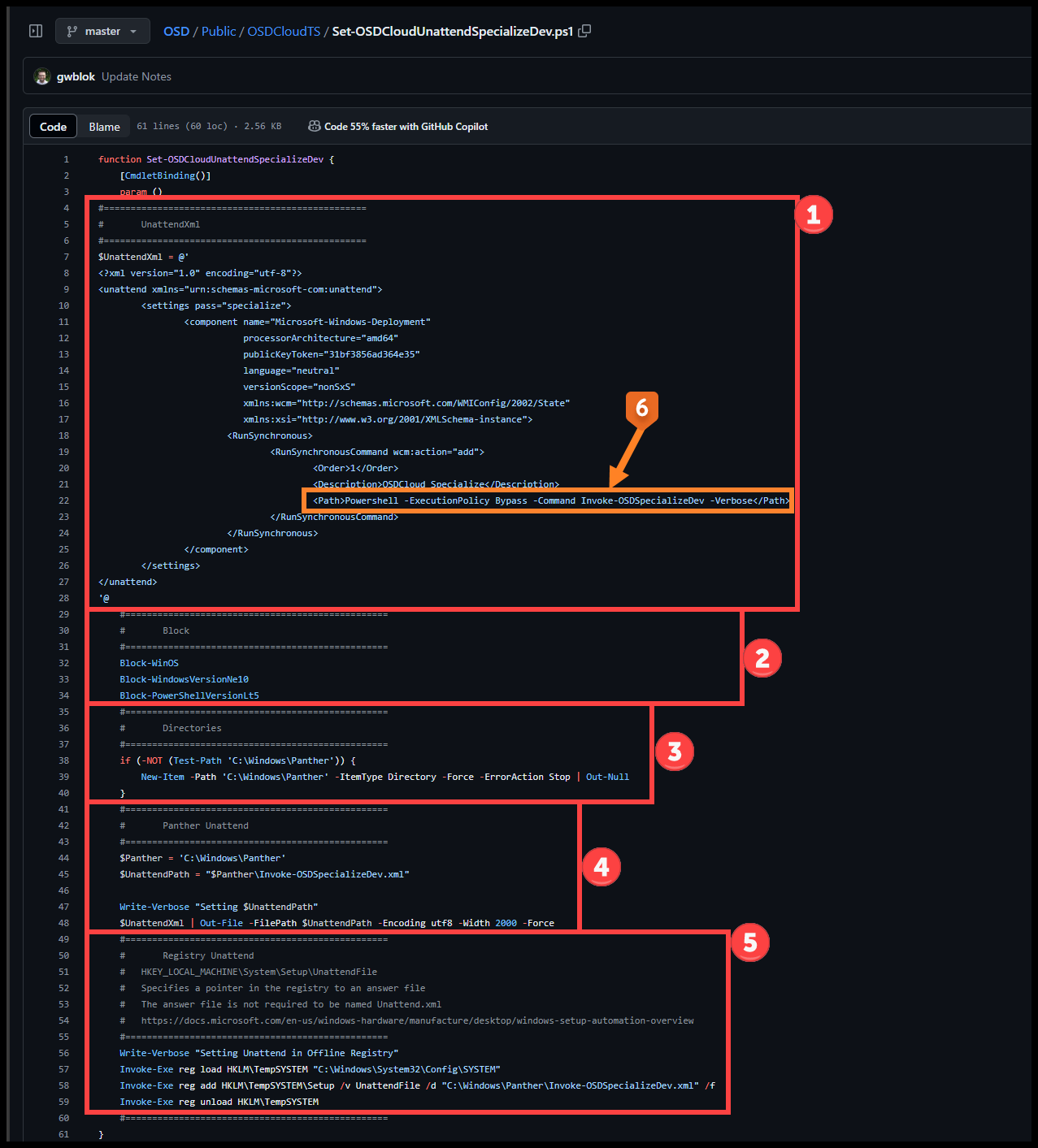
- Stage the data to create the Unattend.xml file
- Run some functions to Prevent continuing if we are not in the correct phase, windows version or, PowerShell version.
- Block-WinOS
- Ensure we are running in in WinPE
- OSD/Public/Functions/Block/Block-WinOS.ps1 at master · OSDeploy/OSD (github.com)
- Block-WindowsVersionNe10
- Ensure we are running Windows 10 or Greater
- OSD/Public/Functions/Block/Block-WindowsVersionNe10.ps1 at master · OSDeploy/OSD (github.com)
- Block-PowerShellVersionLt5
- Ensure we are running PowerShell 5 or Greater
- OSD/Public/Functions/Block/Block-PowerShellVersionLt5.ps1 at master · OSDeploy/OSD (github.com)
- Block-WinOS
- Create the Windows Panther directory and the Unattend file Path
- Create the Unattend xml file in the Panther directory
- Then Output the XML data from step 1 to the file
Invoke-OSDSpecializeDev.xml
- Then Output the XML data from step 1 to the file
- Modify the Registry to Specify the UnattendFile location
- This is the function that will be called when the Unattend file is ran during Windows Setup
Invoke-OSDSpecializeDev
Invoke-OSDSpecializeDev #
This is the function that will run during the Specialize phase of the Windows Setup. It will import and process the HP.JSON file created earlier and determine if either the TPM or BIOS needs to be updated.
View the whole function on Github
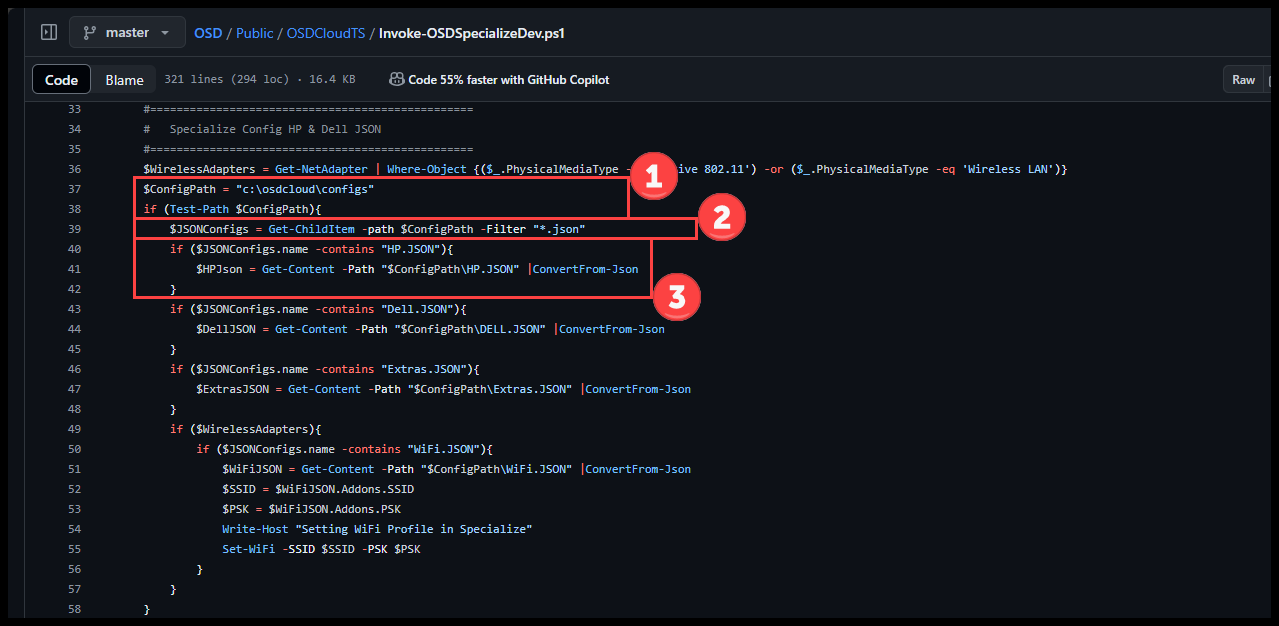
- Set the
Configsfolder path and check that it exists - Geth a JSON files in the folder
- Check for an
HP.JSONfile and store it in the variable $HPJson
Then a little further down the function
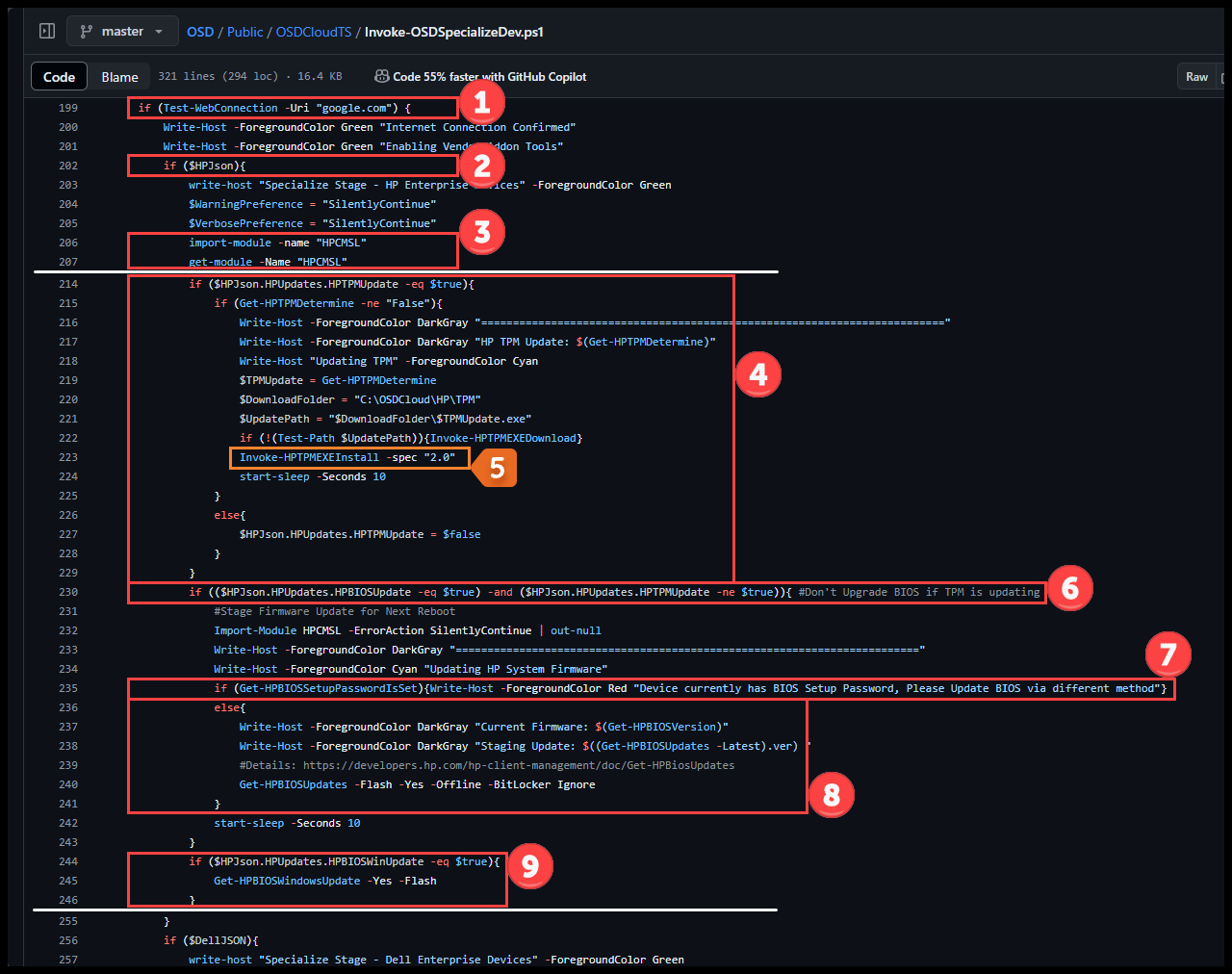
- Do another Internet check
- Check that the file HP.JSON was found in the Configs folder
- Import the HP CMSL PowerShell Module
- Check the HP.JSON file that we want to update the TPM
- If so, double check that an update is necessary by calling the ‘Get-HPTPMDetermine’ function
- Download the required update if not already in the C:\OSDCloud\HP\TPM folder
- Initiate the TPM Update using the function ‘Invoke-HPTPMEXEInstall’
- To update the BIOS during the Specialize phase, we need to check that we are not upgrading the TPM at the same.
- If a TPM and BIOS update is needed, the BIOS Update will be attempted during the SetupComplete phase
- If we can update the BIOS, double check if a BIOS Setup Password is Set.
- If a password is set, then we’ll skip the BIOS update
- Otherwise, we’ll attempt to Stage the BIOS Update for the next reboot by using the ‘Get-HPBIOSUpdates’ function from the HP CMSL module to perform the update
- HP Developers Portal | Get-HPBIOSUpdates
- -Flash
- BIOS update will be flashed onto the current system
- -Yes
- Bypass the ‘Are you sure you want to flash’ prompt
- The wording in the documentation ‘Description’ makes it seem like if you set this switch parameter, then you will be prompted. But if you look at the code of the module, not setting it will prompt.
- -Offline
- Uses the offline mode to flash the BIOS instead of the default online mode. In offline mode, the actual flash will occur after reboot at pre-OS environment.
- -BitLocker Ignore
- Skips the BitLocker check
- Lastly lets Check if Updating the BIOS using Windows Updates is set
- HP BIOS Updates that come from Windows Update do not require the Setup Password.
- Use the ‘Get-HPBIOSWindowsUpdate’ function from the HP CMSL module to perform the update
- HP Developers Portal | Get-HPBIOSWindowsUpdate
- -Yes
- Bypass the ‘Are you sure you want to flash’ prompt
- The wording in the documentation ‘Description’ makes it seem like if you set this switch parameter, then you will be prompted. But if you look at the code of the module, not setting it will prompt.
- -Flash
- BIOS update will be flashed onto the current system
Giving it all a try #
If we run Invoke-OSDCloud on an HP ProDesk 600 G5 SFF with an outdated BIOS and TPM chip on 1.2 firmware. This system will also not have a BIOS Setup Password set and HP Sure Admin Mode is off.
While in WinPE and Running in the Invoke-OSDCloud function
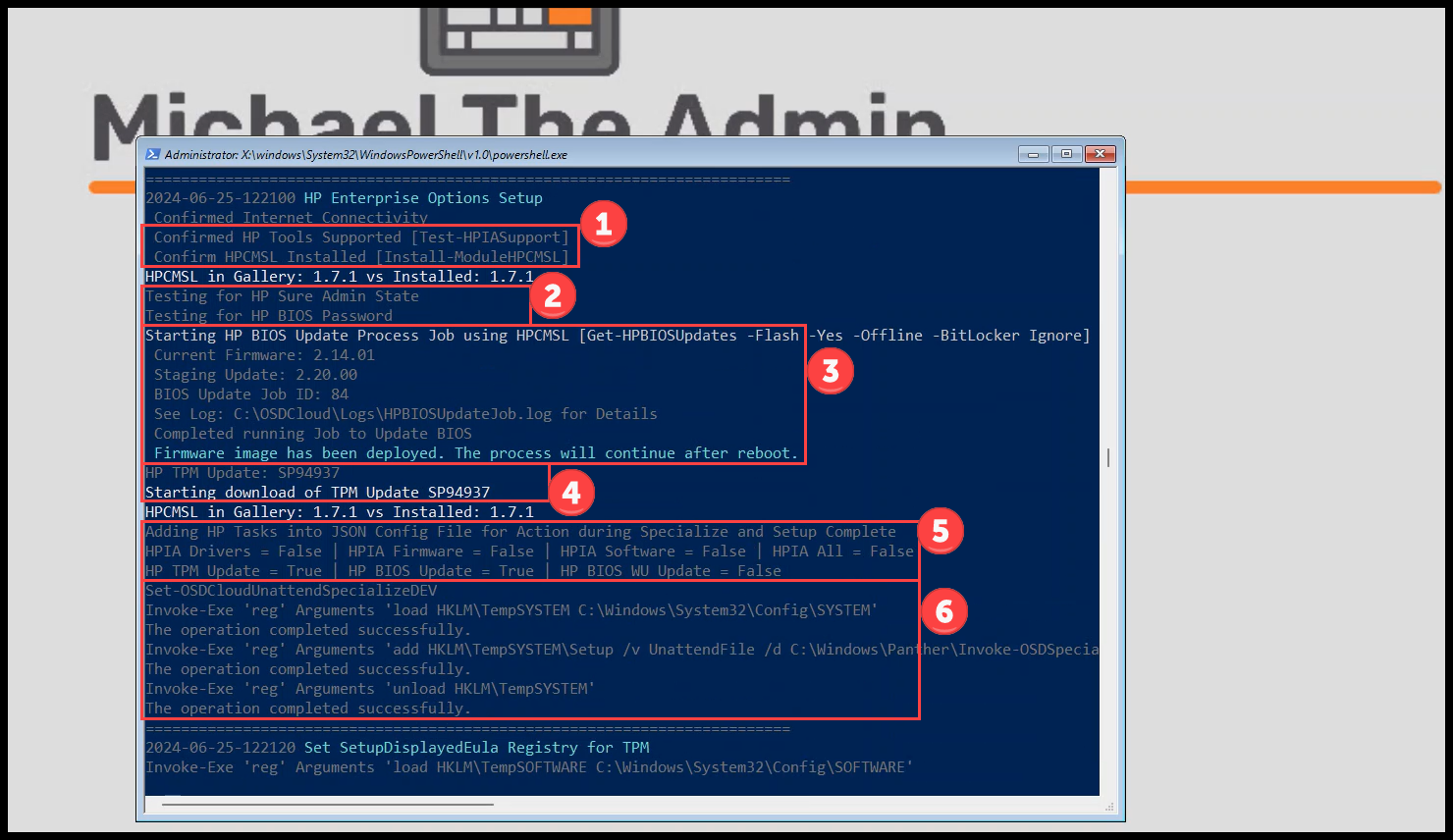
- Test HPIA Support and Install the HP CMSL PowerShell Module
- Test for HP Sure Admin and HP BIOS Password states
- Return
$falsefor both
- Return
- Since we don’t have Sure Admin or a BIOS Password set, we can Stage the BIOS Update while in WinPE and it will update on the next reboot.
- Download and stage the required TPM Update - Softpaq SP94937
- Build the
HP.JSONfile- While there is no logging while it is running, the
Set-SetupCompleteHPAppendruns at the end of this section
- While there is no logging while it is running, the
- Build and setup the Unattend Specialize phase
After this, a few more steps run and a Reboot of the system occurs.

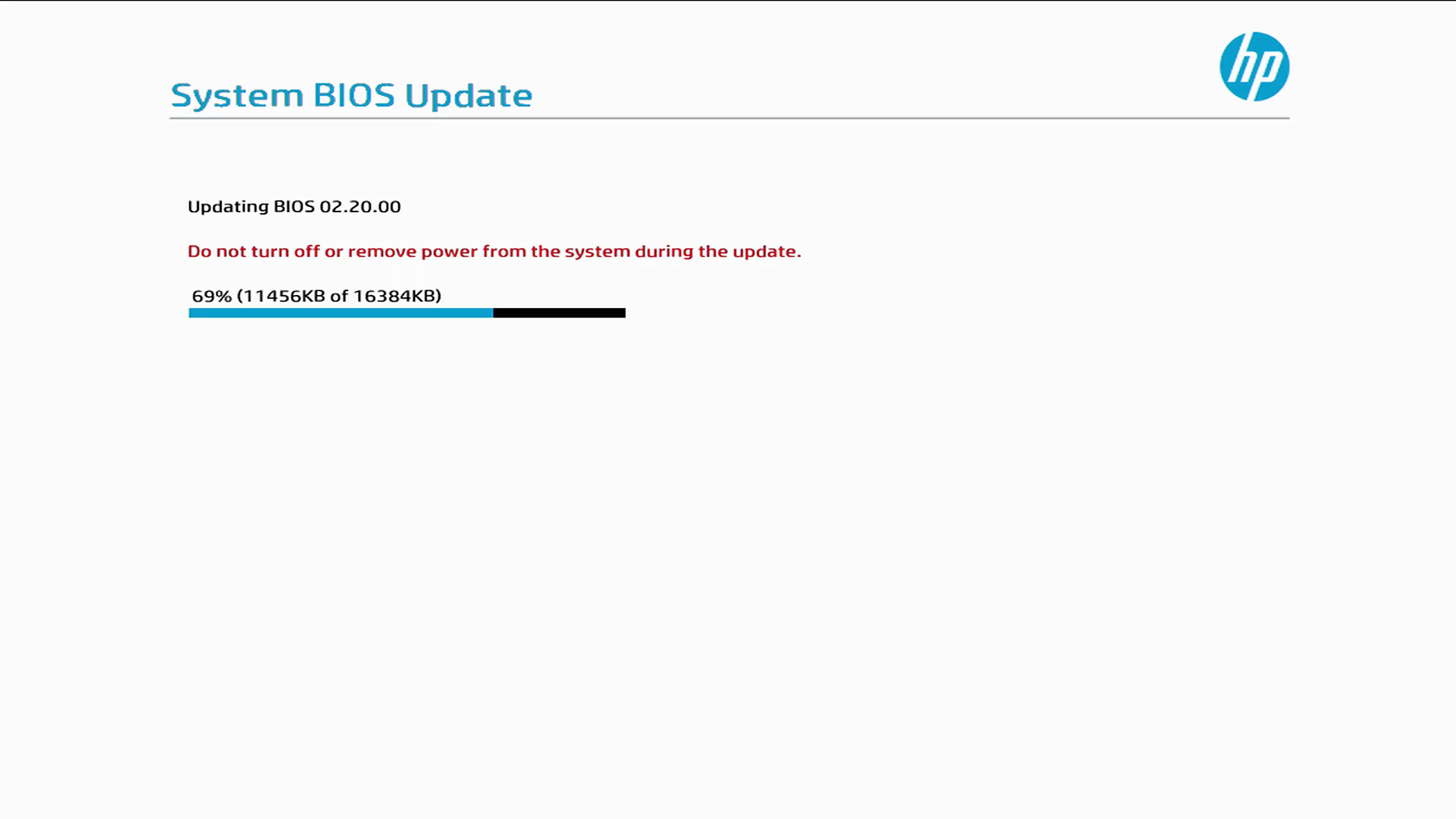
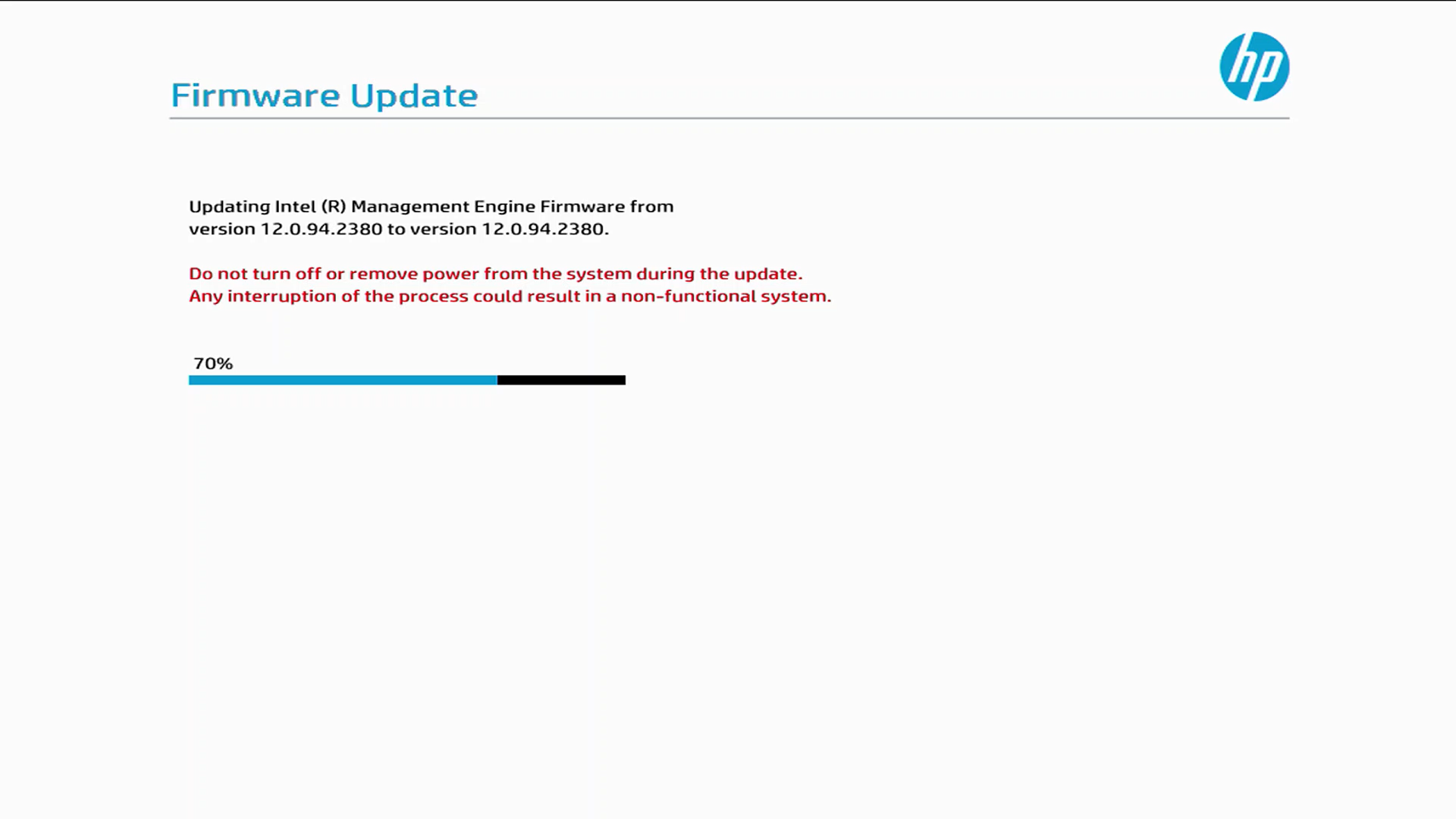
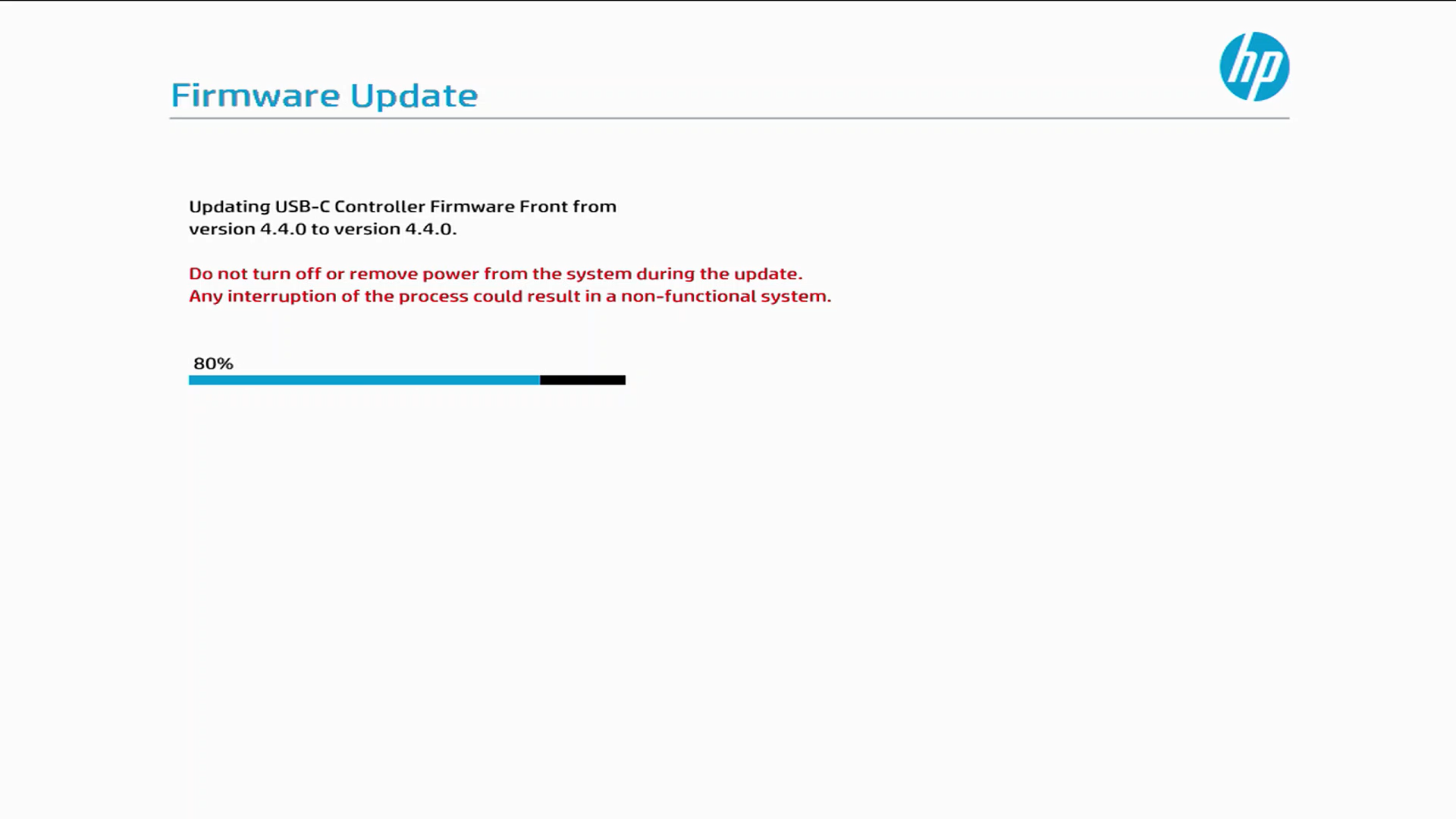
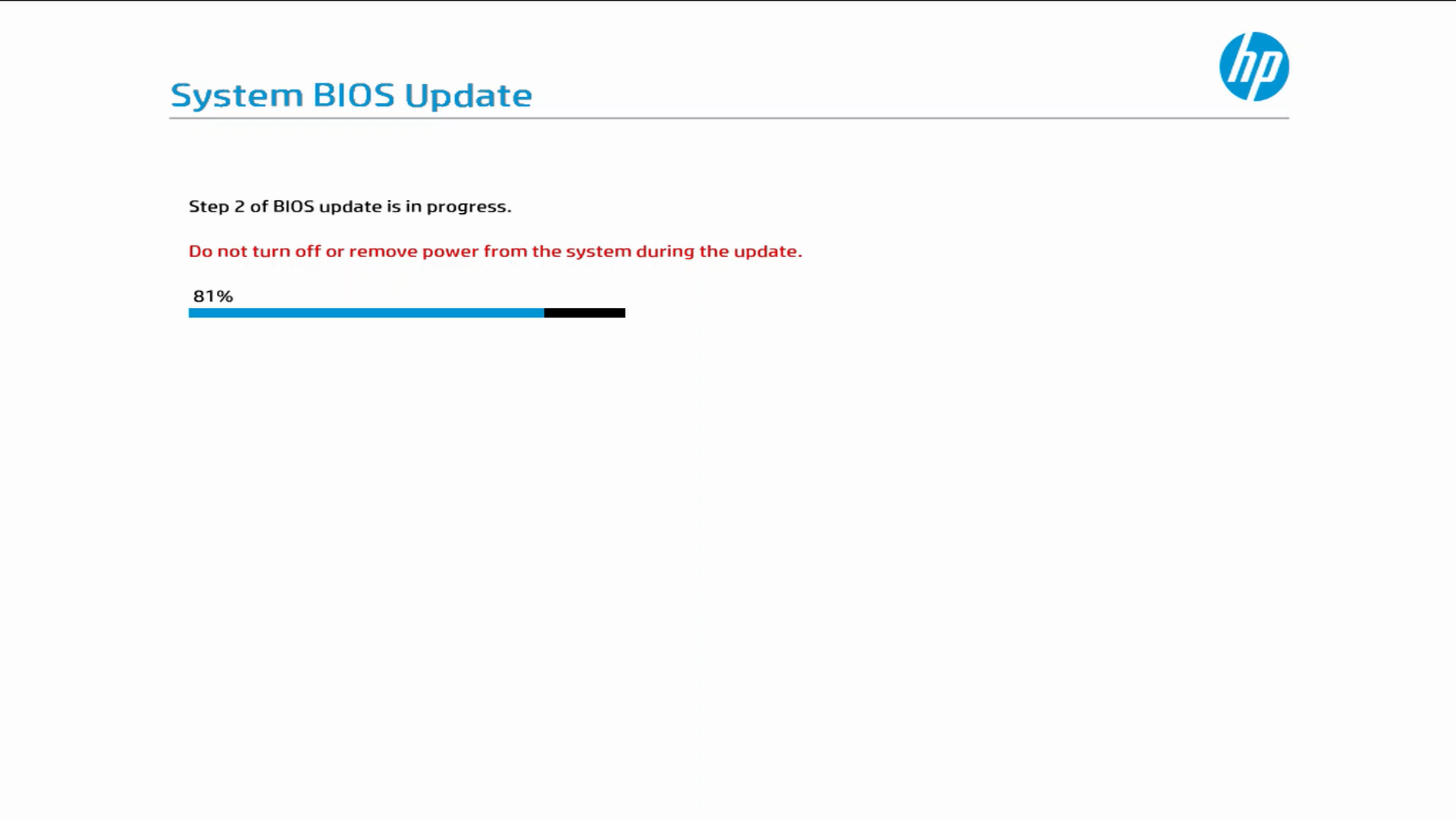
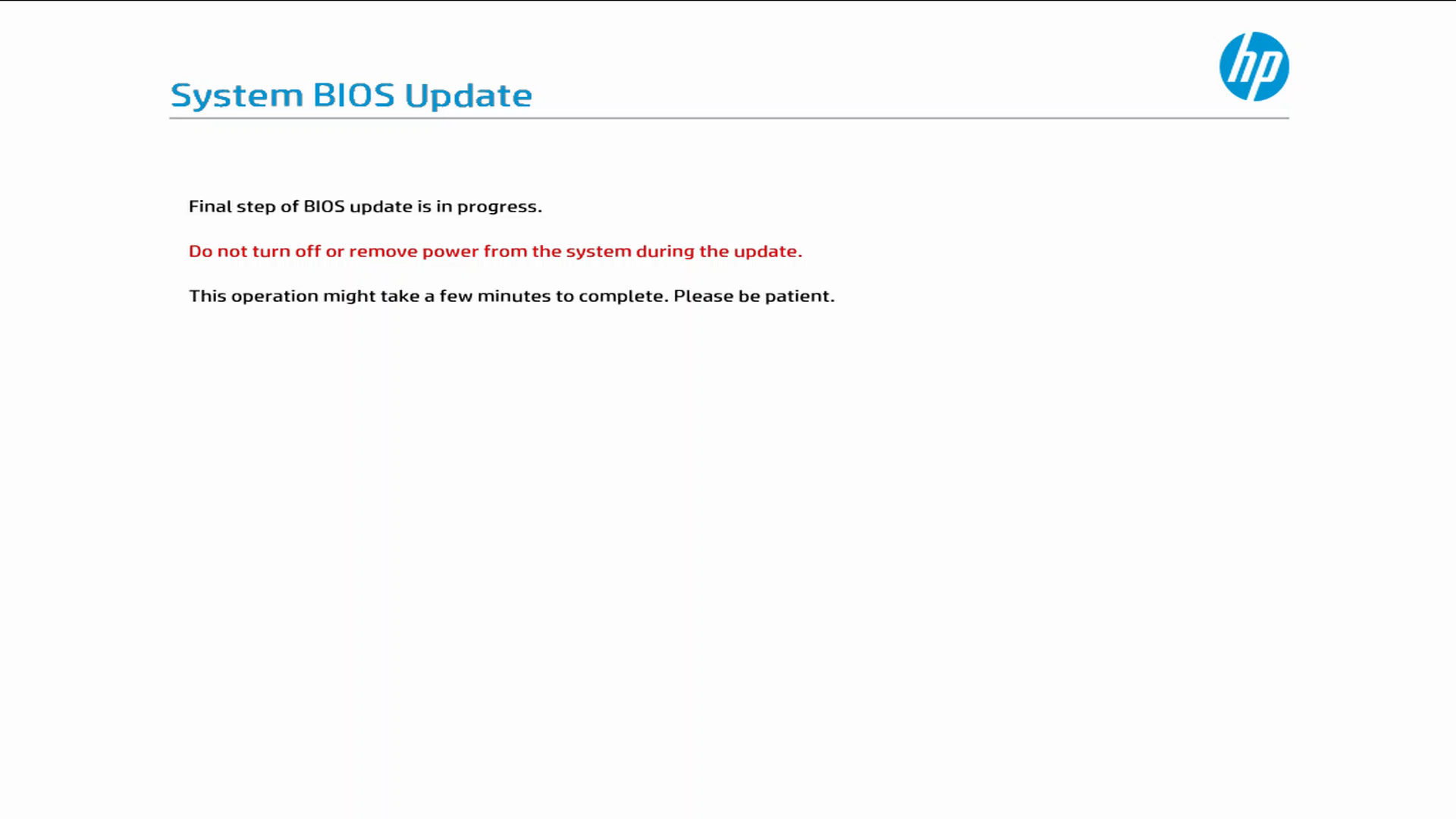
We then head back to the Windows Setup

Then the Unattend Specialize phase kicks in on the ‘Getting ready’ screen and the TPM is updated. We’ll get an Exit Code 3010 and the machine reboot again.
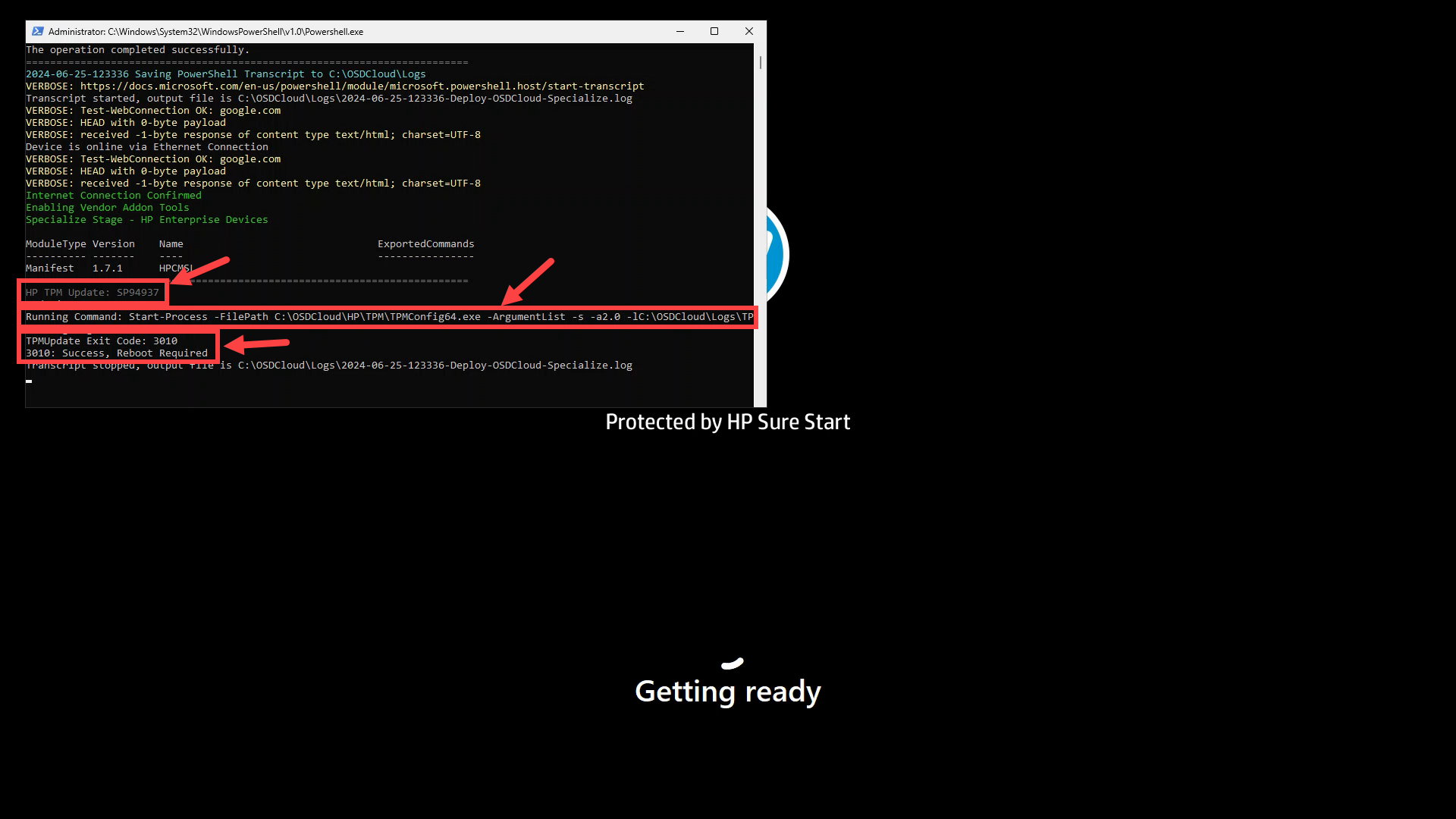
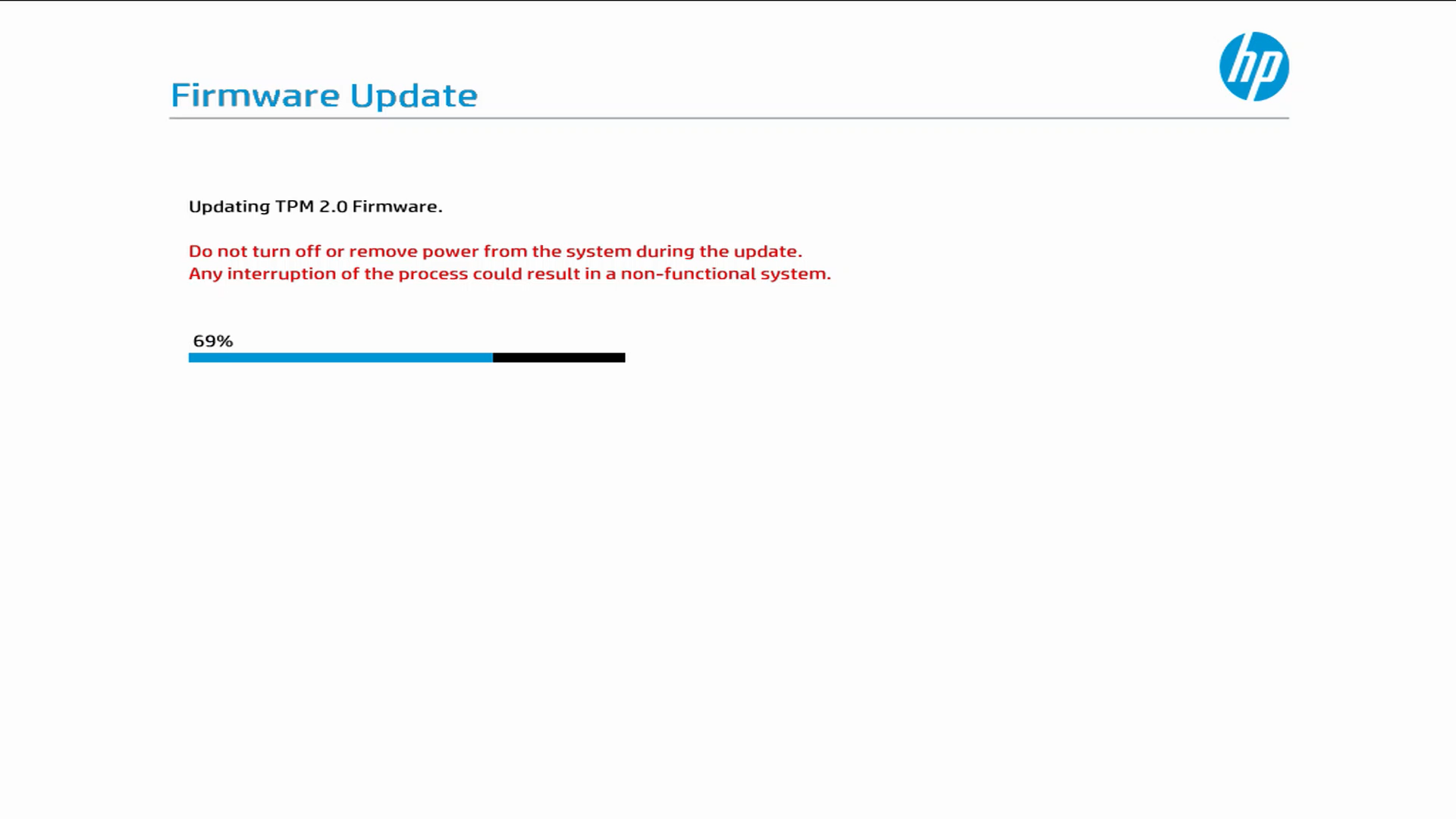
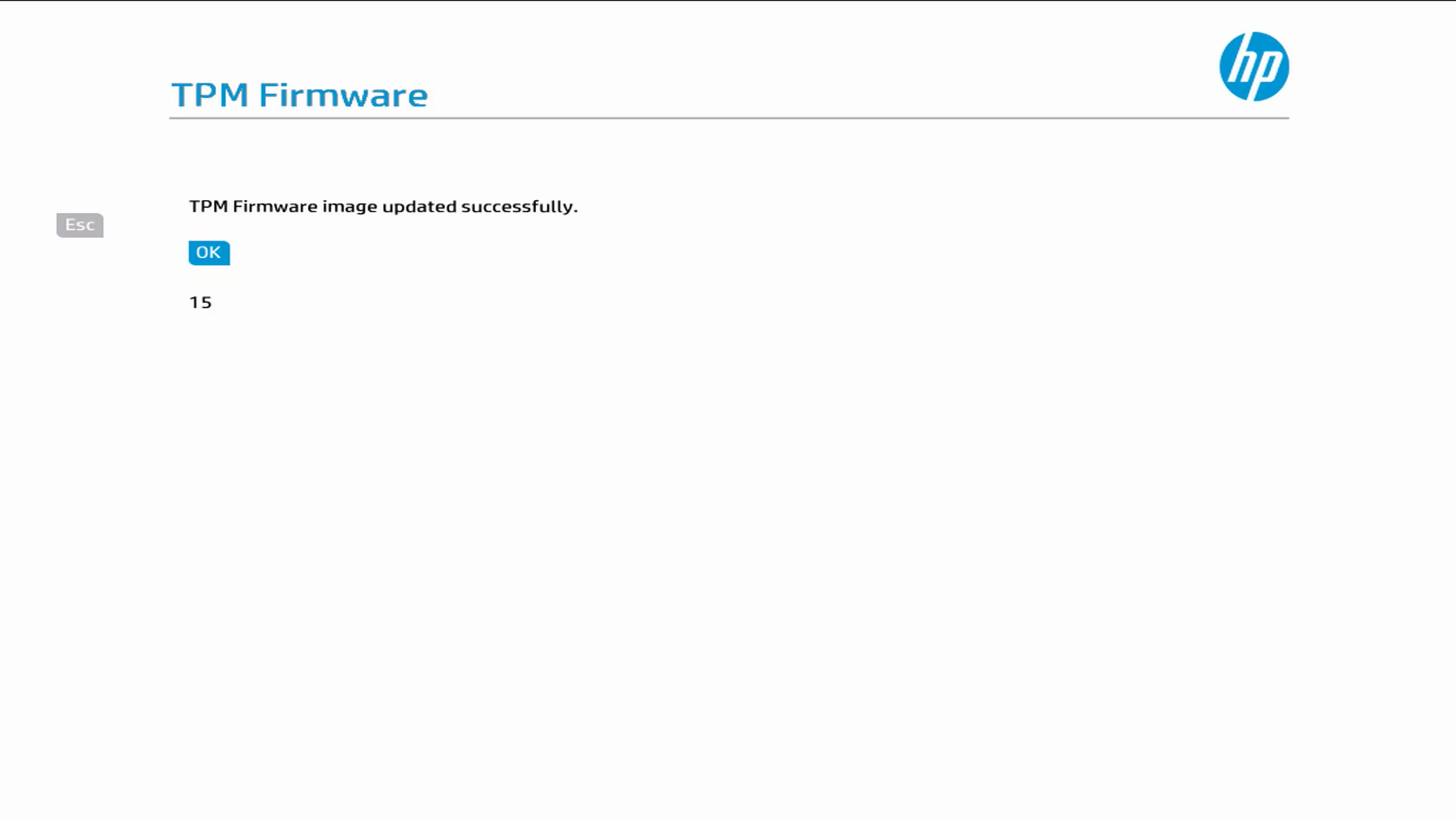
After the TPM update, we go back into the Windows Setup and the ‘SetupComplete’ phase is kicked off on the ‘Just a moment…’ screen

There won’t be any visible output during this step but we can look at the log file afterwards. We can see that the HP Tools section runs.
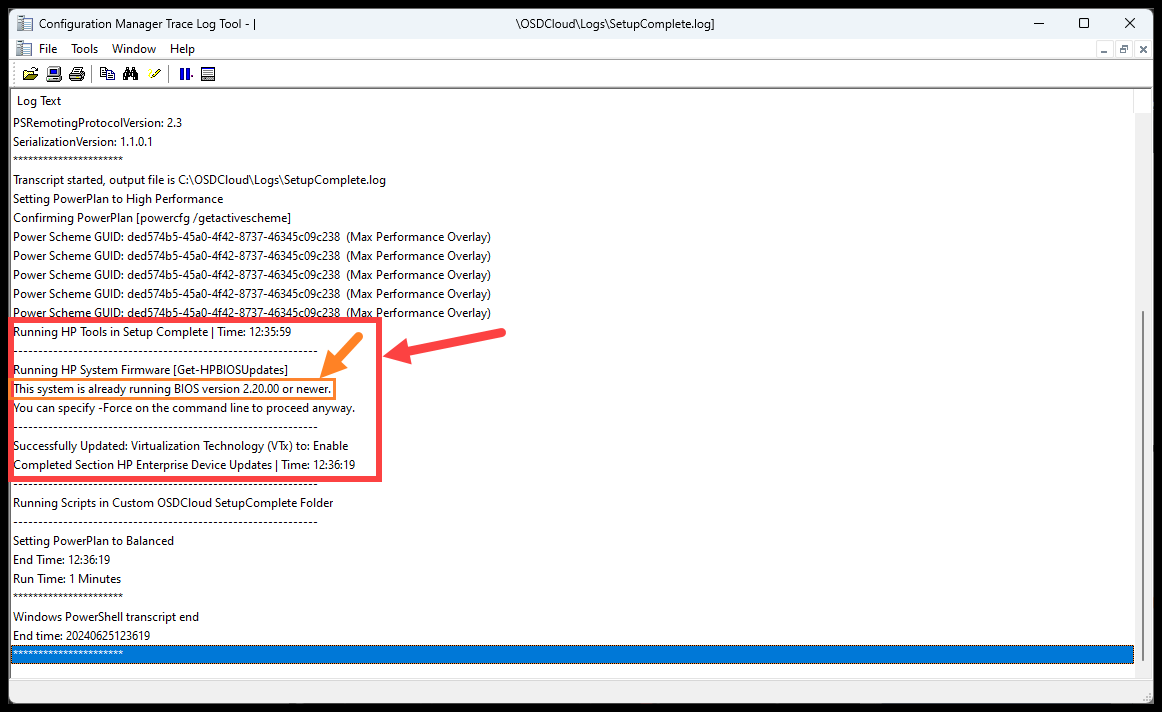
There is no logging for the TPM Update attempt, but it does another check that it’s running version 2.0. Then the BIOS version is checked again and it shows that the current version is running. And finally we can see the ‘Virtualization Technology (VTx)’ BIOS setting is re-enabled.
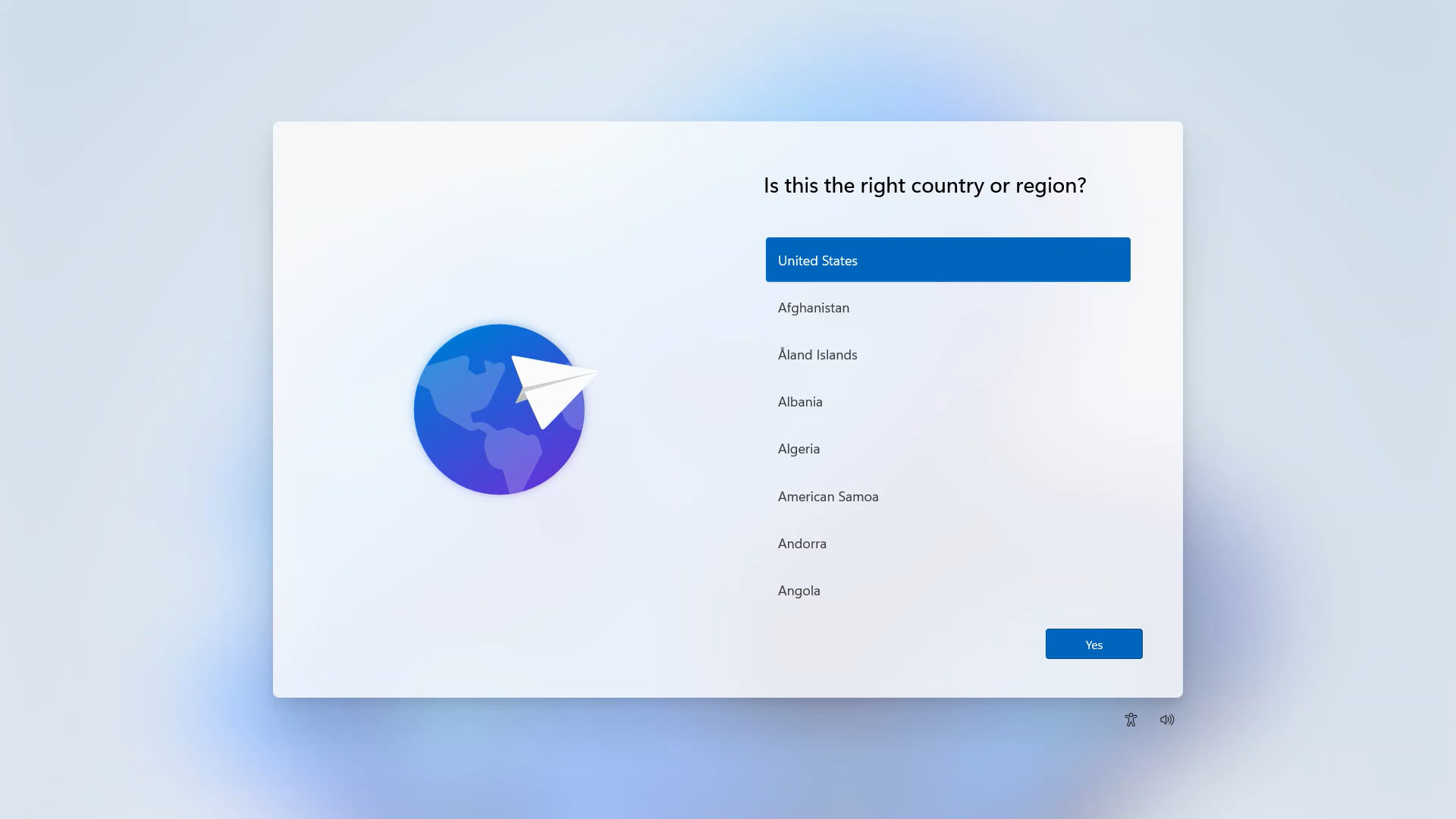
After all that we are taken to the OOBE on a HP Device that has the most current TPM and System Firmware installed.
Conclusion #
While it might look like a lot of these steps happen quickly, you can see that there are a lot parts that have to come together to make updating 2 components happen.
I just want to give a shot out to @gwblok for all this amazing work. Legend.