


As a Customer Engineer at Patch My PC, I often find myself needing to get Properties from MSI installers. But, security is a priority as well, so we also tend to double check the File Hashes of installers. Using PowerShell to get these values works, but I can’t be troubled to type those commands more than once, who has time for that.
So, with some inspiration from some coworker’s scripts, I reworked an old app of mine into a Right-Clickable Context Menu option to quickly view the Information I need.
Additional Information #
- Github.com - asjimene/GetMSIInfo: Adds a right click context menu to grab information for MSI files.
- Github.com - MichaelEscamilla/GetMSIInformation: Drag and Drop Application to view key MSI Information
- PowerShell Gallery | GetMSIInformation
Where it Started #
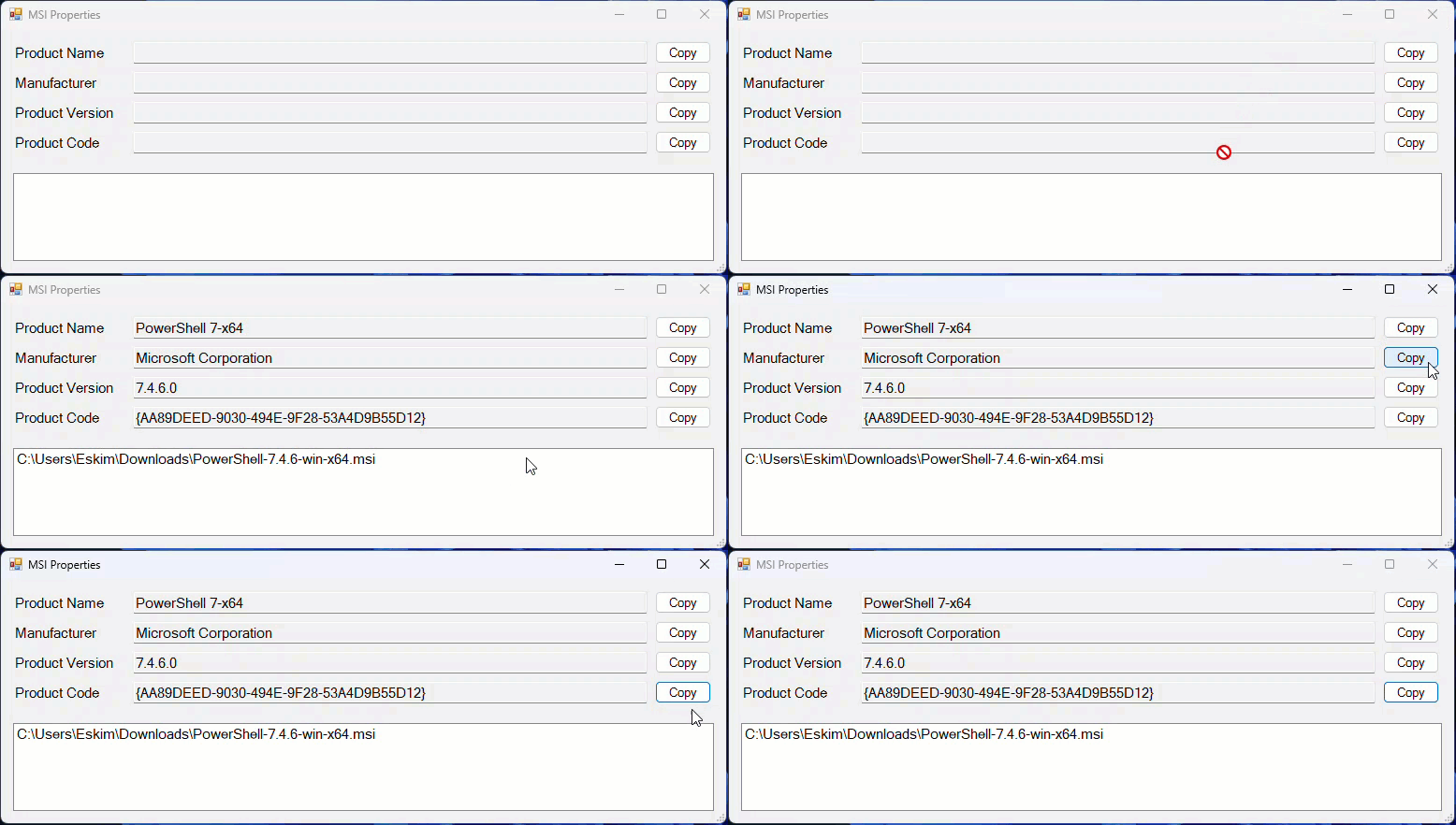
Some years ago I utilized PowerShell Studio to create an installable EXE do something similar. You could drag and drop files to the bottom box and be able to view key information about the MSI file.
This was great when packaging apps for PSAppDeployToolkit as you could easily copy this information to the Clipboard and paste into your script. But this is all it did, and I didn’t want to have to install or run an EXE file to get this functionality.
Inspiration #
There is no shortage of amazingly talented people at Patch My PC. So naturally I’ve come across some very useful information, like Andrew’s script GetMSIInfo.
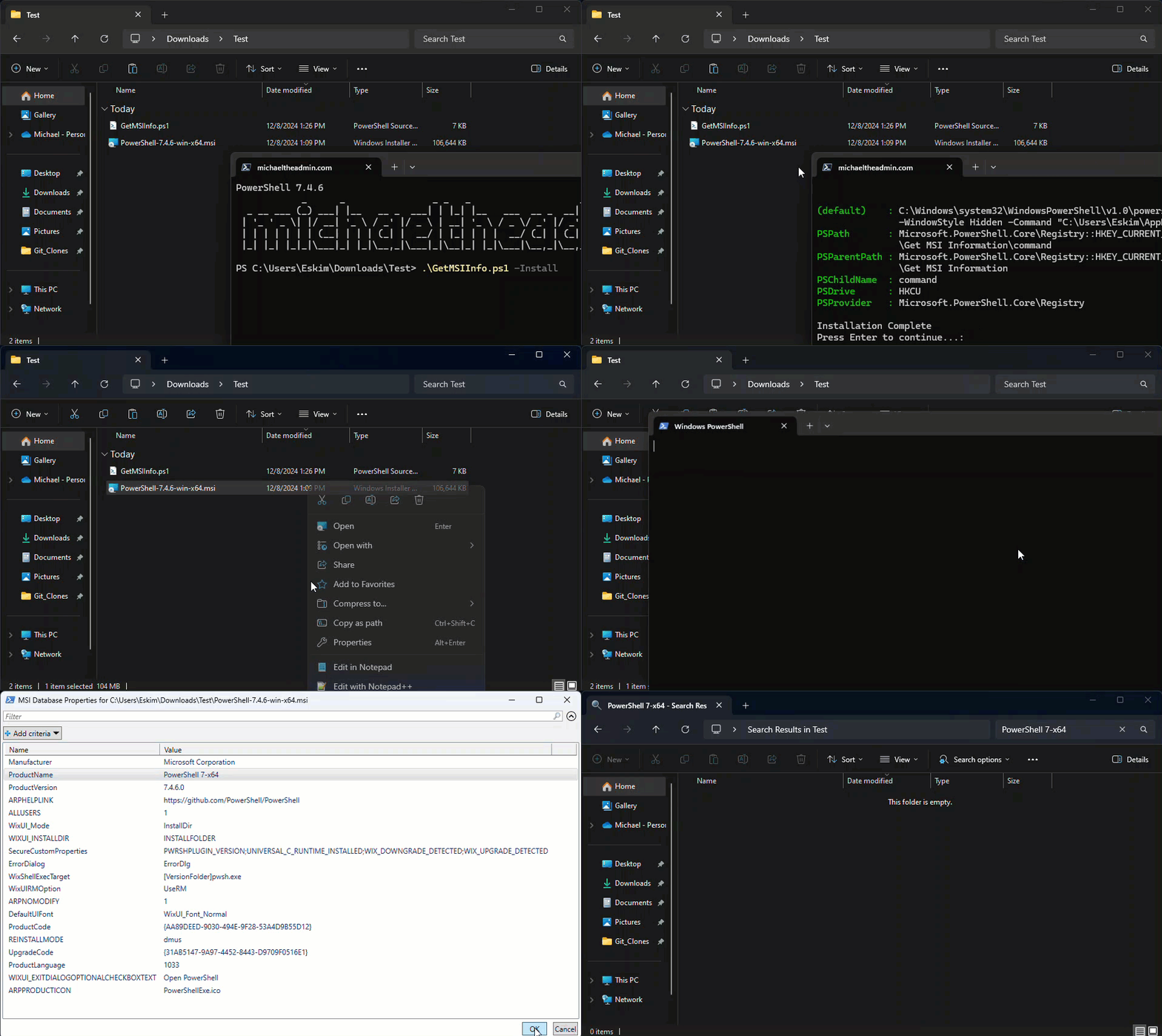
I loved the Idea of being able to run a script from the Right-Click Context Menu. This would make running the script super-fast and easy.
What else to Include? #
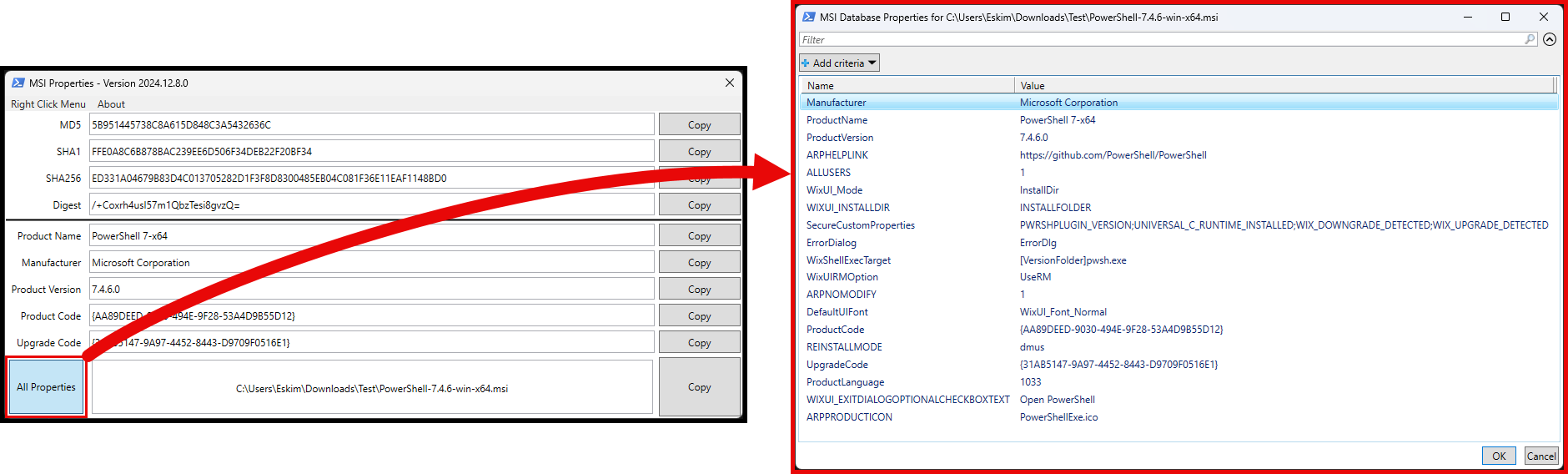
The MSI Properties are important, but having some HASH information as well would be great. So, I decided to mix all this together and ended up with the below UI.
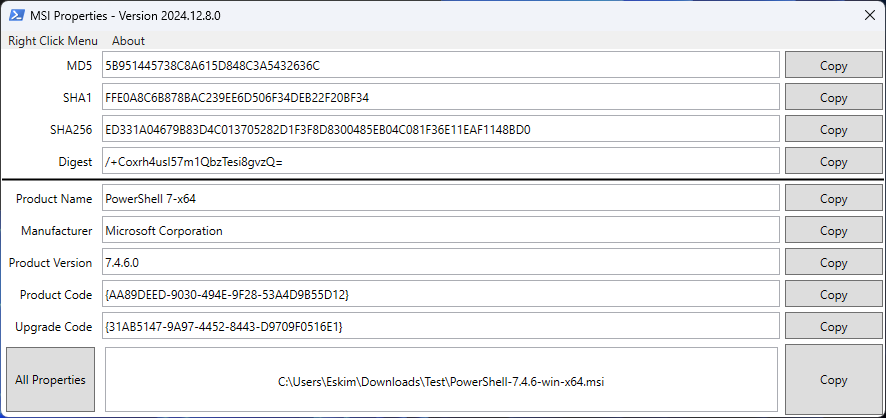
The script utilizes the Windows Presentation Framework to display the UI.
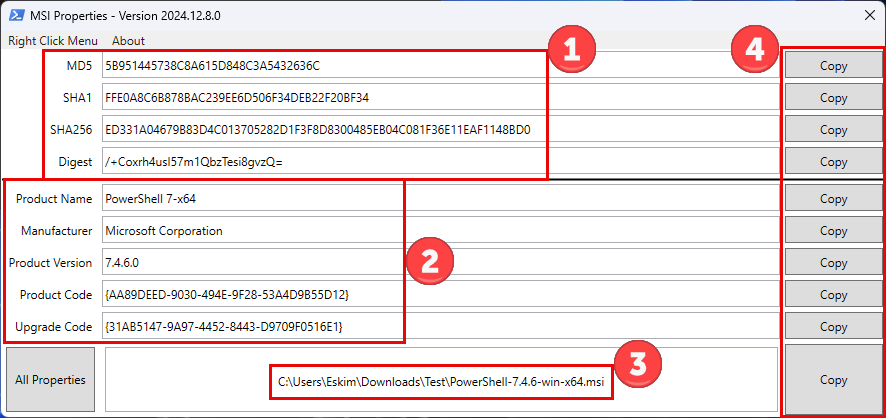
- File Hash Information
- MD5, SHA1, and SHA256 file hashes
- Digest, which is the base64 string of the SH1 Hash
- The more common MSI Properties
- Path to the File that is being analyzed
- Copy buttons to easily put the desired value onto your Clipboard
Use the ‘All Properties’ button to see everything available within the MSI Properties Table. Select one of the lines, then ‘Ok’ to copy the value to your Clipboard.
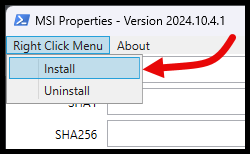
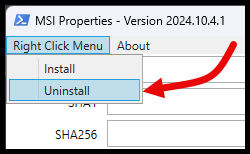
The Right-Click Context Menu Option can be Installed or Uninstalled from the Menu bar
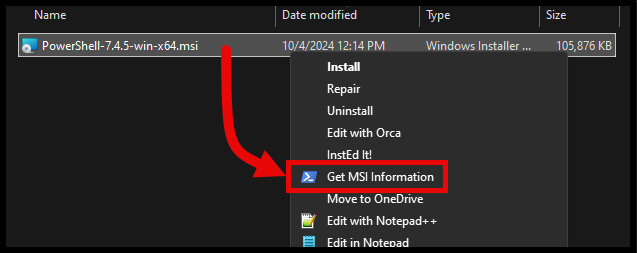
Installing the option will add the below to the Right-Click menu on MSI files.
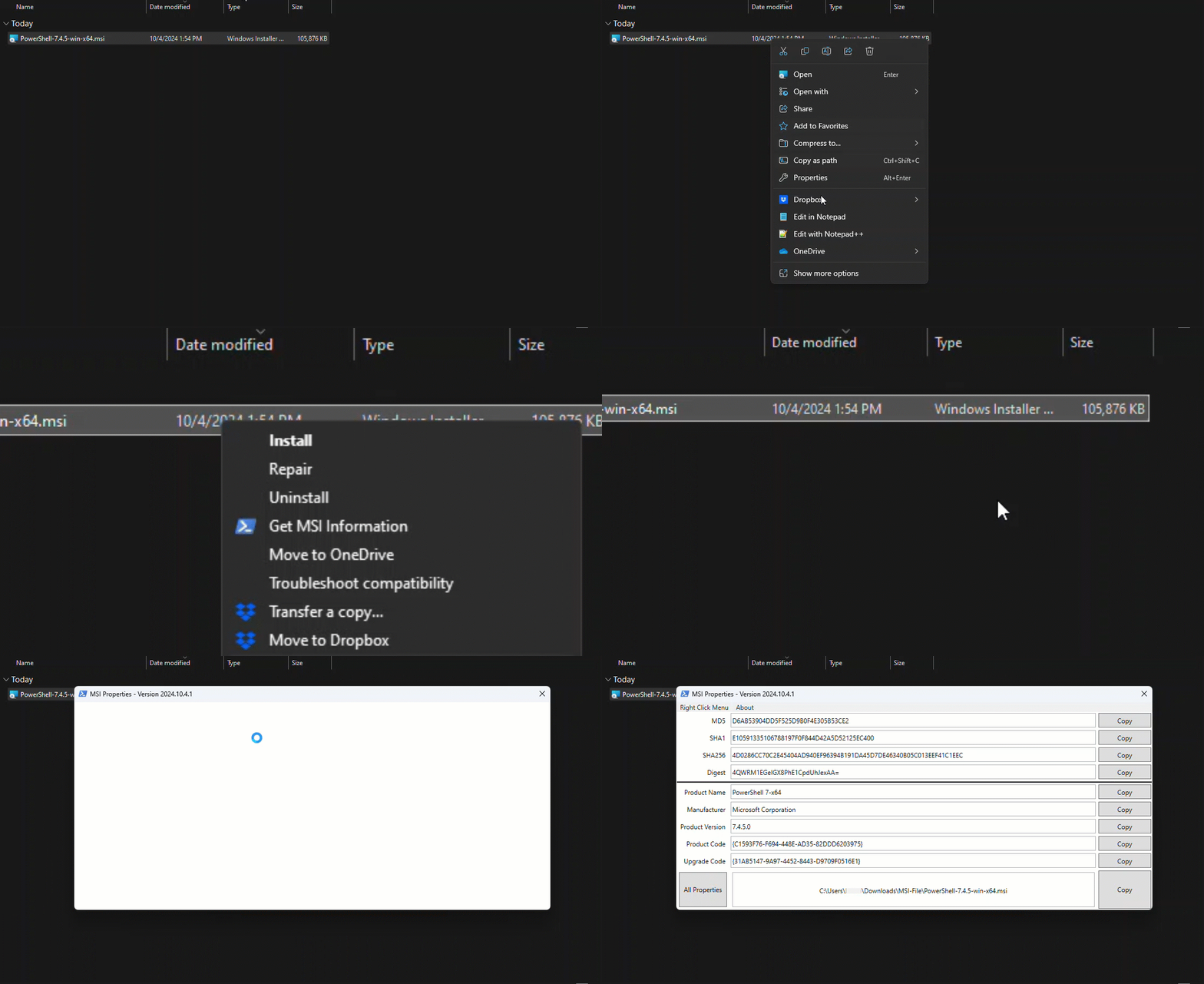
Right-Click Context Menu #
I find this part to be really interesting, so I’ll go over how the scripts enable this feature.
Registry Keys #
To setup the context menu option, we’ll create some subkeys under the ‘.msi’ file association key.
Get MSI Information #
This key will define what the name of the Context Menu is, and the icon that will appear. I opted to use the powershell.exe file.

command #
This key defines the command that will be executed. We’ll call the PowerShell script and use the ‘-FilePath’ parameter to pass the selected file.

C:\Windows\system32\WindowsPowerShell\v1.0\powershell.exe -NoProfile -ExecutionPolicy Bypass -WindowStyle Hidden -Command "C:\Users\Eskim\AppData\Local\GetMSIInformation\GetMSIInformation.ps1" -FilePath '%1'$MenuItem_Install.add_Click #
The portion of the script that sets it all up is the Click Event for the ‘Install’ menu bar item.
- Start by setting the Destination Folder to
"$env:LOCALAPPDATA\GetMSIInformation"- Check and create the folder if needed
- Check if the Script is being invoked from the Internet, determine this based on
$PSCommandPath- If NOT, copy the script from the current location to the
$DestinationPath
- If NOT, copy the script from the current location to the
- If it was Invoked from the Internet
- Download the Raw script contents and save to a Script File in the
$DestinationPath - This is required because if Invoked from the Internet, there is no script in the current directory to copy. So you gotta make one.
- Download the Raw script contents and save to a Script File in the
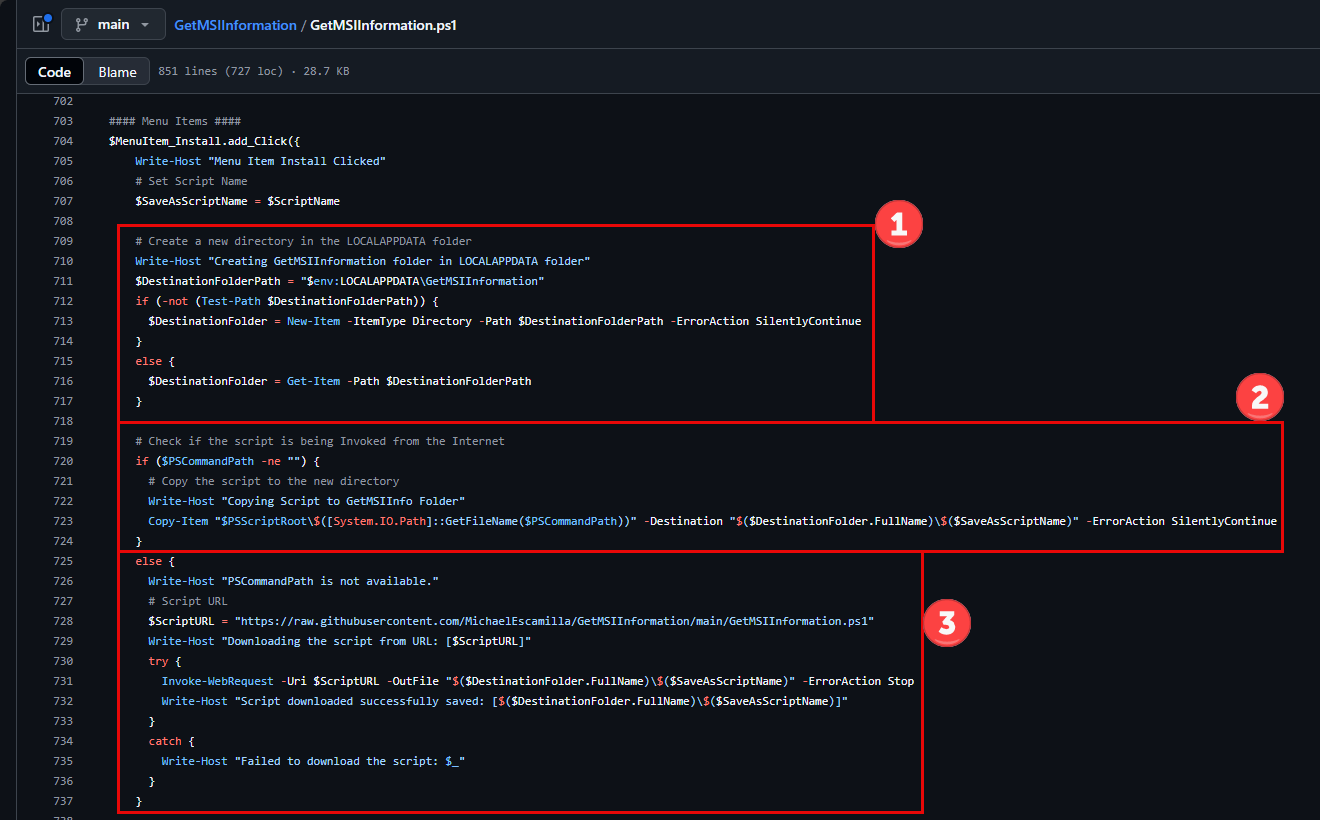
After saving the script, we’ll setup the registry to display the menu item.
- Create an ‘.msi’ file association key
- Create the ‘shell’ subkey
- Create the ‘Get MSI Information’ subkey
- Set the Icon that will show up in the menu. We’ll use the powershell.exe
- Within the ‘Get MSI Information’ key, create a
REG_SZvalue named ‘icon’ and set the data to the powershell.exe file path
- Within the ‘Get MSI Information’ key, create a
- Create another subkey named ‘command’
- Within the ‘shell’ key, create a
REG_SZvalue named ‘(default)’. The data defines what the name of the menu item will be. - And finally, within the ‘command’ key, create a
REG_SZvalue named ‘(default)’. The data will be the command to run the GetMSIInformation.ps1 script.
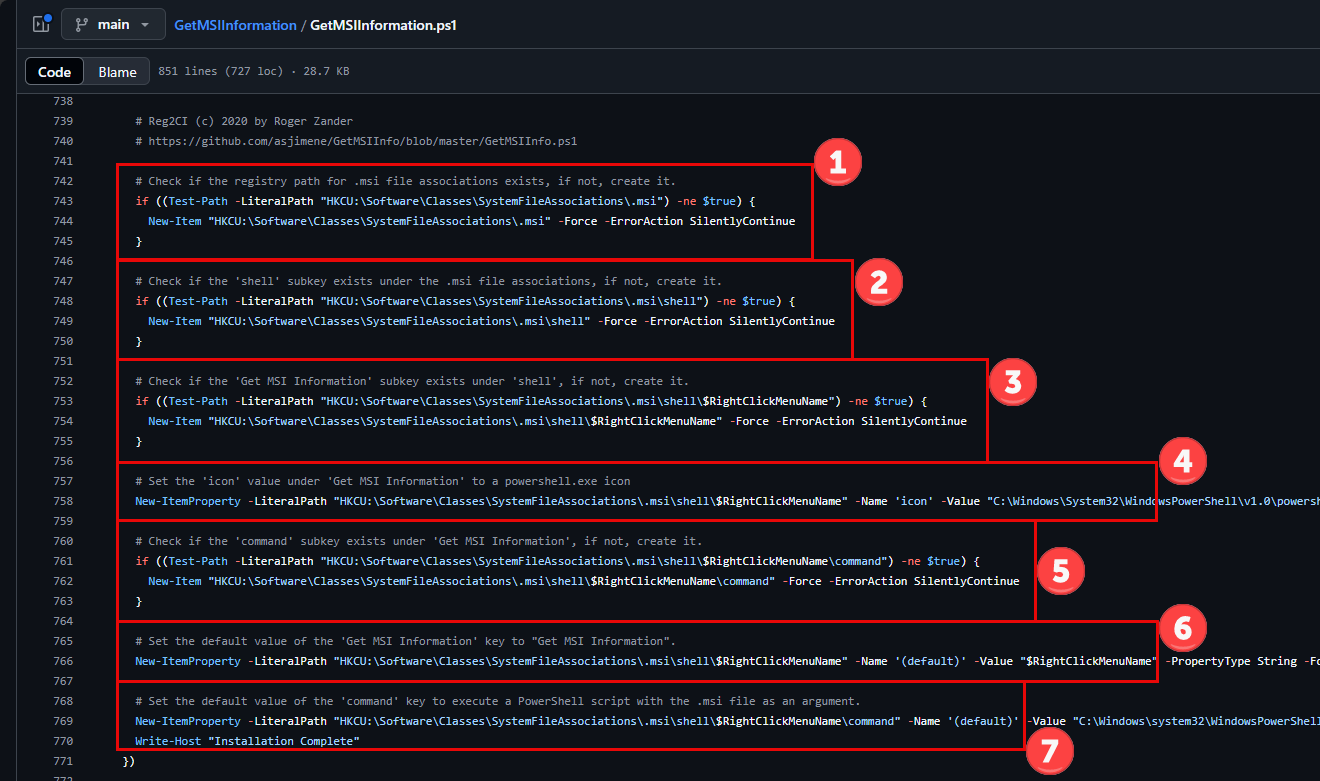
How do I get this? #
A few ways you can get the script.
PowerShell Gallery #
The script is available within the PowerShell Gallery.
# Install Script from PSGallery
Install-Script -Name GetMSIInformation

# Run Script
GetMSIInformation.ps1
Github #
View and download the script from the Repository over on Github
Invoke-Expression from Github #
And finally, my favorite method. Invoke the script directly from Github. ‘MSIApp.michaeltheadmin.com’ redirects to the raw script on Github. This makes it’s really easy to call and install the Right-Click Context option easily.
iex (irm msiapp.michaeltheadmin.com)
Conclusion #
This was a really fun project that taught me a lot about WPF, file hashes, and even some GitHub management skills.
Hopefully you can find this to be a useful tool as well. Let me know if you have any suggestions or improvements that can be made.