


PSADT version 4.1.x will NOT require the use of ServiceUI to run Interactive Mode.
PSADT 4.1 is out. Please go test and give the PSADT team any feedback: Releases · PSAppDeployToolkit/PSAppDeployToolkit
I also have another Blog about testing 4.1, check the Series link above ^
Having used PSADT for many different deployments in Configuration Manager, I love the features that allow you display prompts to users for different scenarios. But when making the move to Intune, you’ll soon notice that these prompts don’t appear.
I’m not going to pretend to know the exact underlying reason why it works in Configuration Manager and not Intune, but the gist is that Intune runs in the SYSTEM context, and it doesn’t have the necessary tools to have PSADT run in ‘Interactive’ mode.
This isn’t a new discovery, others have been dealing and working through this for a while. But I’ve recently seen some post asking about this, and I’ve also got a few questions about it from customers. So I figured why not do a quick write up so that I don’t have to keep googling it every time I get asked.
Additional Information #
- FAQ · PSAppDeployToolkit
- See the Question ‘How do I get the UI to display with an Intune deployment?’
- PSAppDeployToolkit/examples/ServiceUI at main · PSAppDeployToolkit/PSAppDeployToolkit
- Using PSADT to bring system prompts to the user context
- Download Microsoft Deployment Toolkit (MDT) from Official Microsoft Download Center
Starting Information #
I plan to go over what you need to ‘Add’ to a PSADT package to get this working, but I won’t cover setting it up from scratch. Nor will I cover the creation of an IntuneWin file to be uploaded to Intune.
What you’ll need
- A PSADT package already created
- Know how to create Win32 apps in Intune
- This mean generating an ‘IntuneWin’ file and uploading it to Intune
Be aware that you are running under the ‘SYSTEM’ context. Using ServiceUI just makes the PSADT and other installer windows appear for the current interactive user session. But the processes will have the power of ‘SYSTEM’, so be mindful of what interactions your are enabling for the user.
What is the actual problem? #
Lets set a baseline of the issue and what it looks like.
I have a PSADT v4 package template for Notepad++ x64 version 8.8.1.
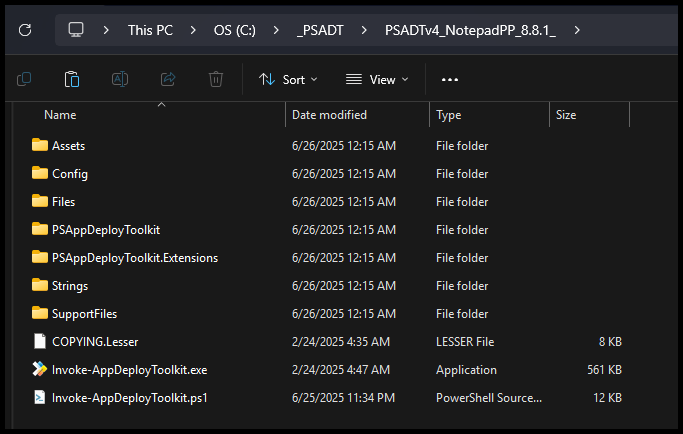
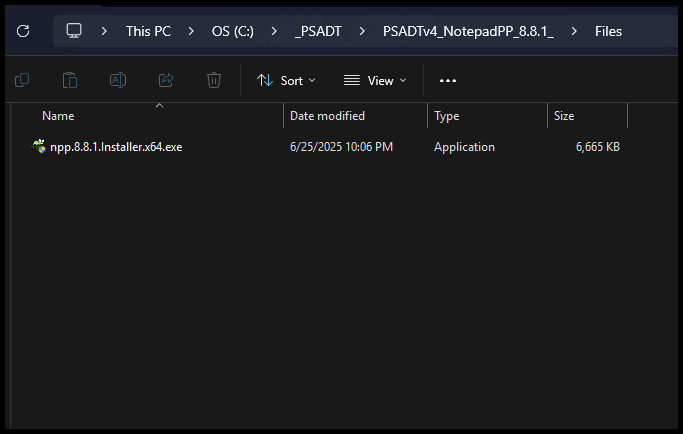
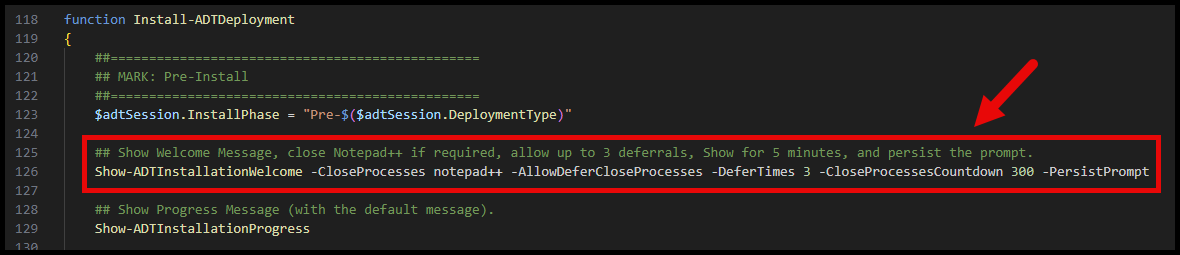
In the script I have the function to -CloseProcesses and -AllowDeferCloseProcesses to prompt the user to close the application if it’s currently running.
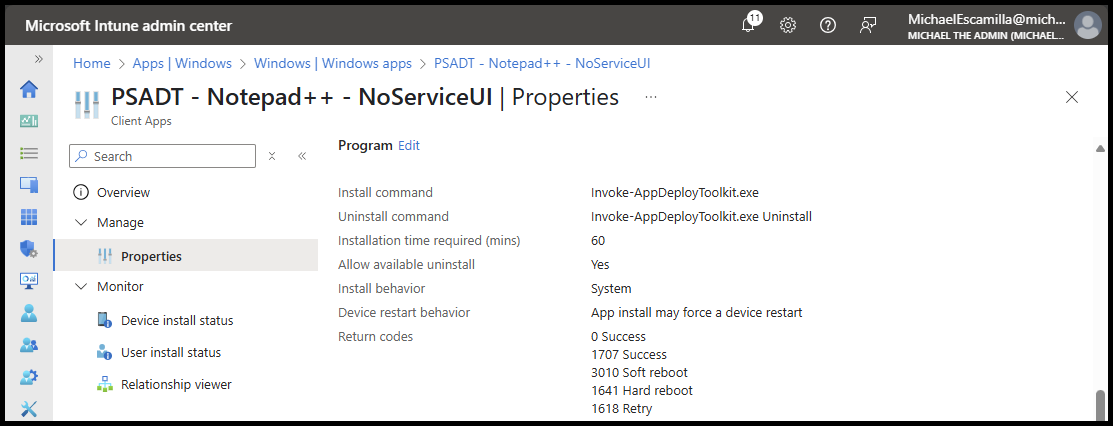
I created a Win32app in Intune and set the installation command to the below:
Invoke-AppDeployToolkit.exeInvoke-AppDeployToolkit.exeI don’t specify any other parameters because the defaults are:
- DeploymentType = ‘Install’
- DeployMode = ‘Interactive’
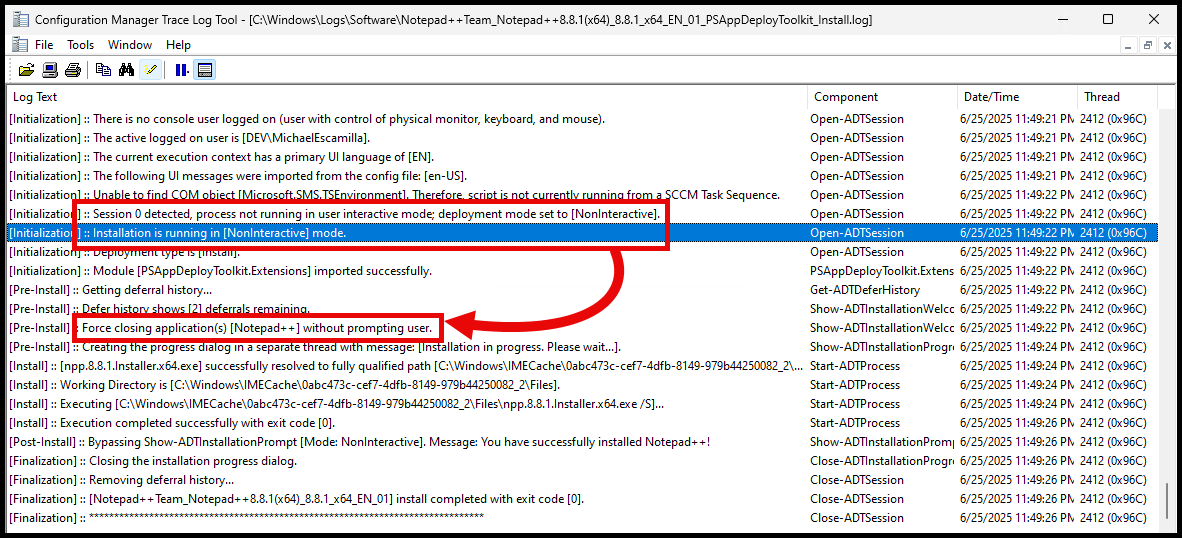
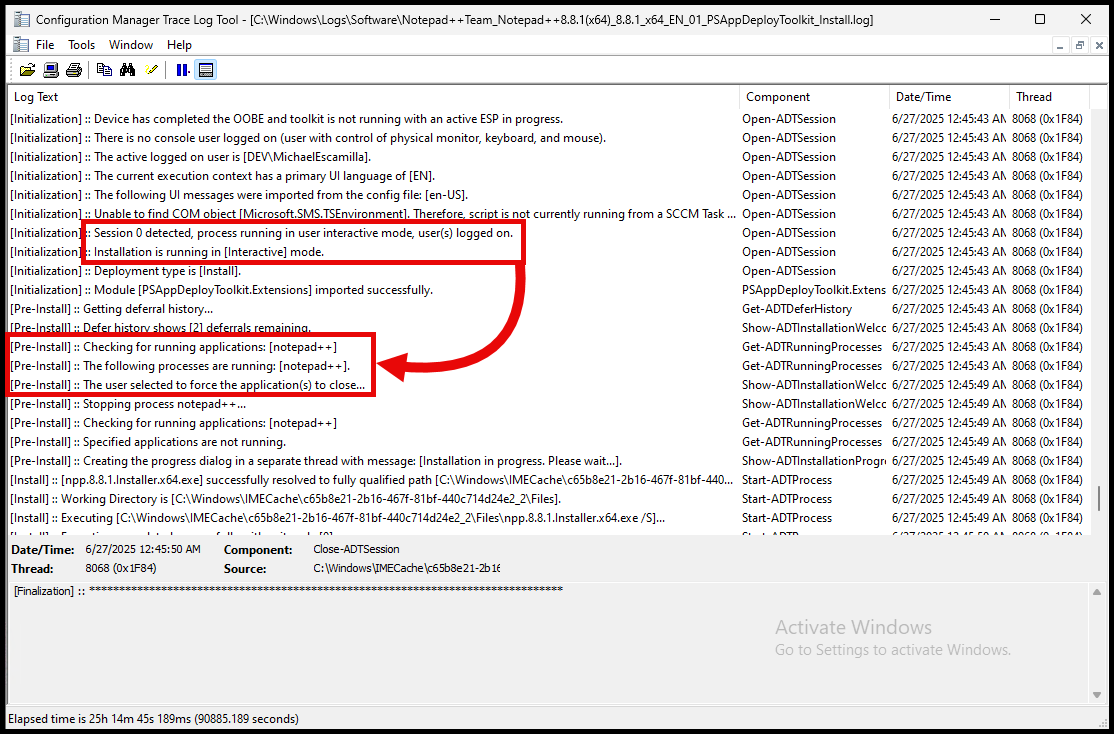
When you run this app and view the PSADT log, we can see the issue:
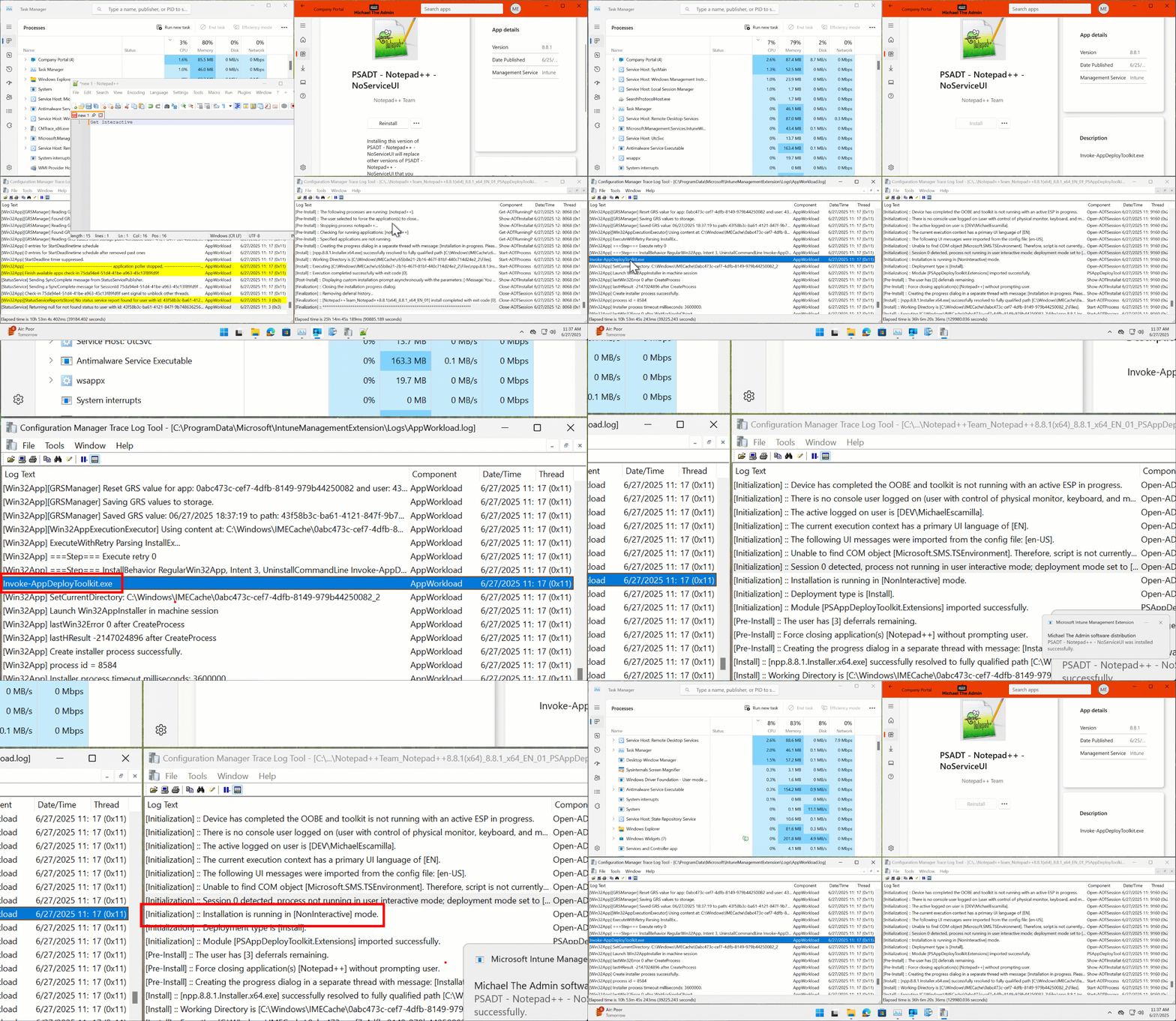
Even though the default DeployMode is Interactive, the log says the process is not running in user interactive mode, which sets the script to NonInteractive mode.
From there, the script forcefully closes the notepad++.exe process without prompting the user.
But what if you want to see the prompt to give your user the ability to defer the installation?
Get ServiceUI #
First thing you need to do is get a copy of the ‘ServiceUI.exe’ from an installation of Microsoft Deployment Toolkit
Microsoft Deployment Toolkit is no longer avaialble for download from Microsoft.
Hopefully you have a copy already, or you can get it from a trusted source.
Download the installer here: Microsoft Deployment Toolkit
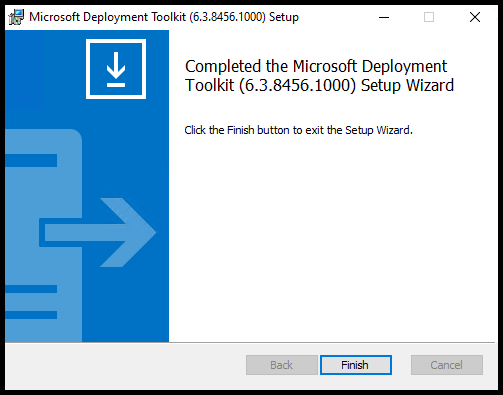
Then run the install:
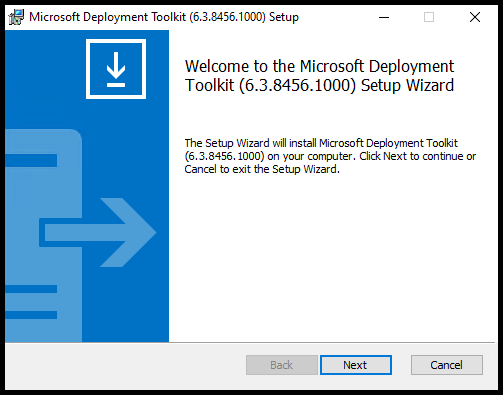
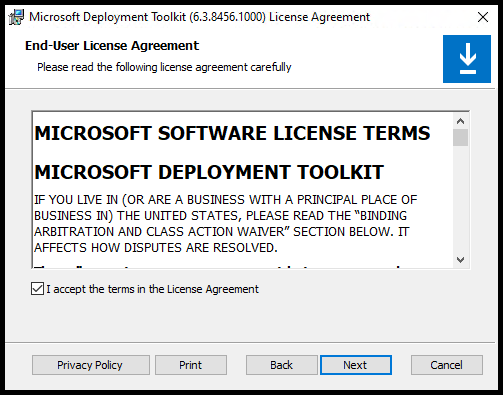
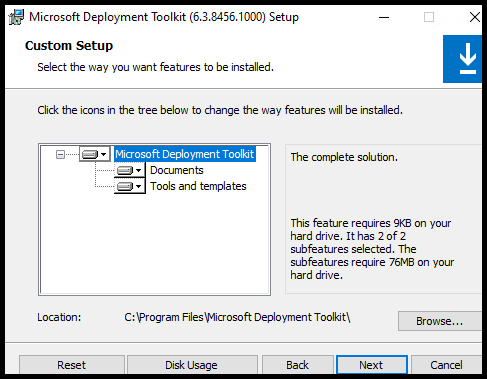
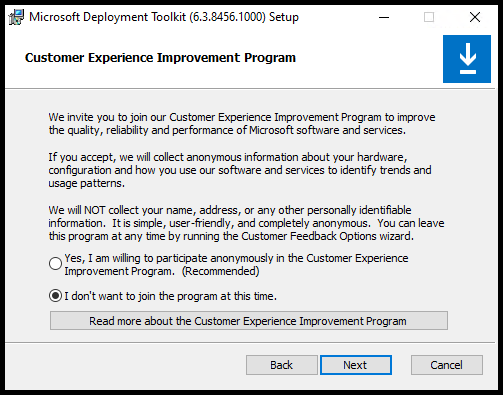
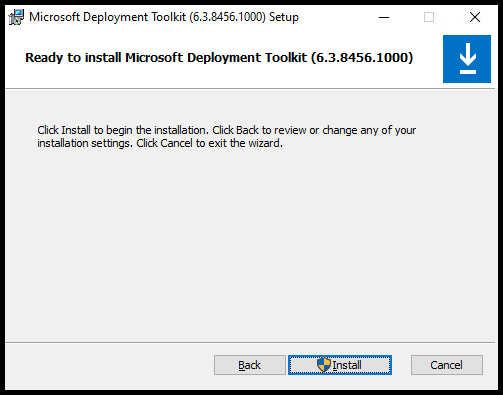
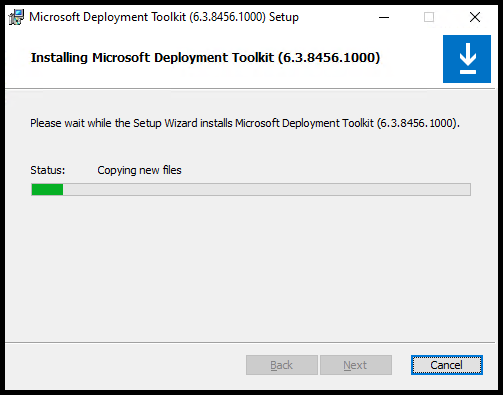
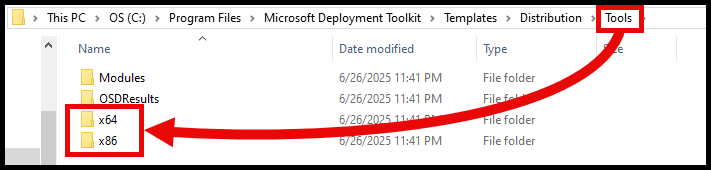
Navigate to the folder:
C:\Program Files\Microsoft Deployment Toolkit\Templates\Distribution\ToolsIn the “Tools” folder are ‘x64’ and ‘x86’ subfolders. There are two architectures of ‘ServiceUI.exe’, an x64 and x86 version.
I typically use the x64 ServiceUI, but depending on what you are doing for your app installation, you may need to use a specific Architecture.
What I would recommend doing, is copying ServiceUI.exe from each architecture folder, and renaming it to ServiceUI_<Arch>.exe like below:
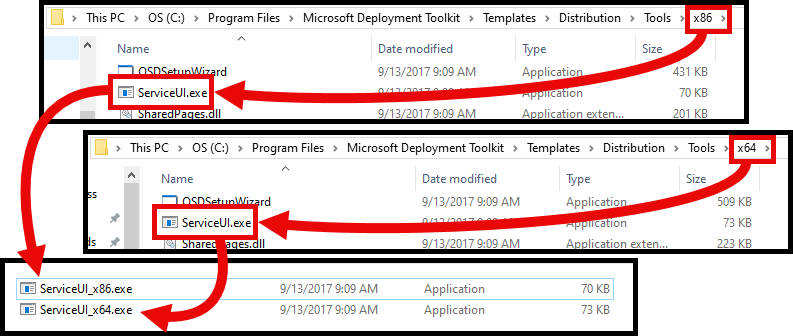
Renaming the exe’s accordingly will make more sense later. But at a minimum, it just makes it easier to tell them apart, and also allows you to store in the same directory.
Add ServiceUI to a PSADT package #
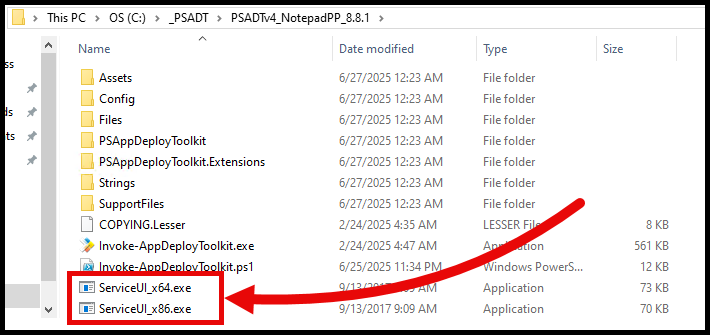
Now that you have the ServiceUI exe’s, copy them to the ‘root’ of your PSADT package like below:
From here, generate your ‘IntuneWin’ file, then create and upload it to Intune.
Intune: Install command #
When creating the Win32app in Intune, use the below command for the ‘Install command’
.\ServiceUI_x64.exe -process:explorer.exe Invoke-AppDeployToolkit.exe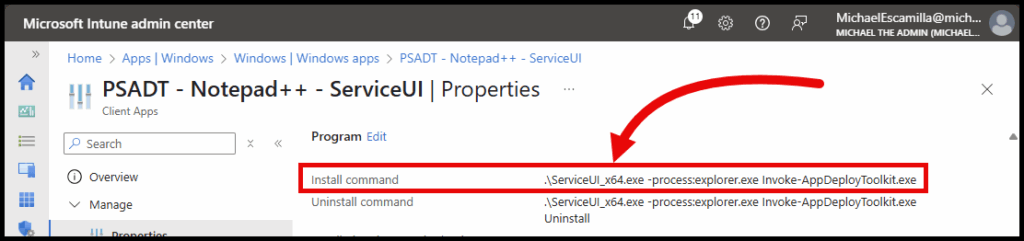
You can also use ServiceUI for the ‘Uninstall command’ as well:
.\ServiceUI_x64.exe -process:explorer.exe Invoke-AppDeployToolkit.exe UninstallSuccess, we are Interactive #
If we run this application I’ve created ‘PSADT -Notepad++ - ServiceUI’ using the above install command, the PSADT prompts show!
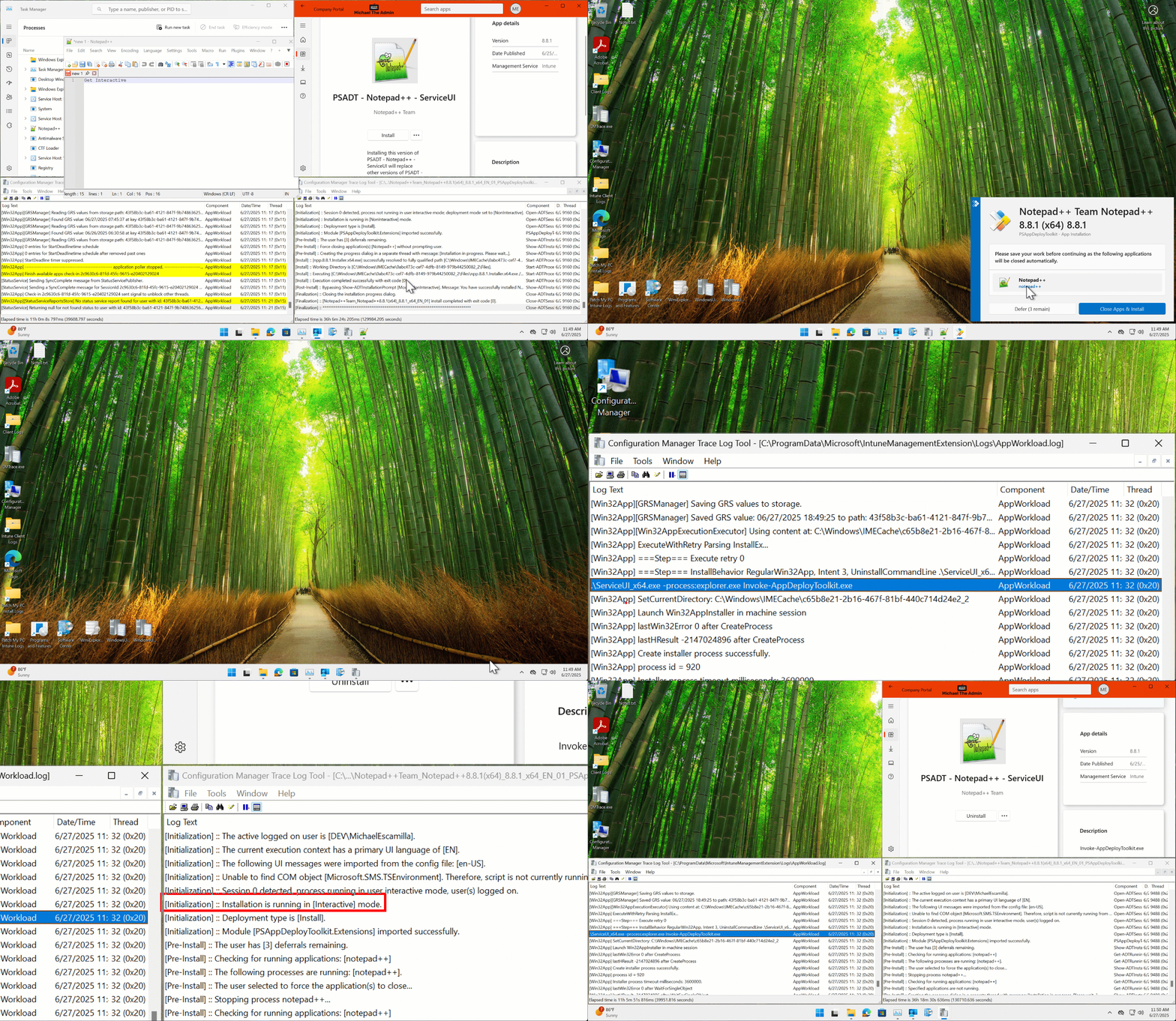
Looking at the PSADT log again, it reports that we are ‘in user interactive mode’, and instead of focefully closing the app, we were prompted to close:
Downsides? No user logged on? #
Are there any downsides to use the above install command? ‘Yes’
When calling ServiceUI directly like we did above, it will only run the Invoke-AppDeployToolkit.exe if the explorer.exe process is running. This process only runs when a user is logged on.
If want to have your package run when no users are logged on, then unfortunately the above install command will not work.
Alternative command line using Invoke-ServiceUI.ps1 #
To address the above issue of not being able to run ServiceUI with no users logged on, the amazing PSADT team created a script.
Download the script here: PSAppDeployToolkit/examples/ServiceUI at main · PSAppDeployToolkit/PSAppDeployToolkit
The description from the README says it all:
This will launch the toolkit silently if the chosen process (explorer.exe by default) is not running. If it is running, then it will launch the toolkit interactively, and use ServiceUI to do so if the current process is non-interactive.
Awesome! The script will handle both scenarios for us and automatically run our PSADT package accordingly.
PSADT Package Setup #
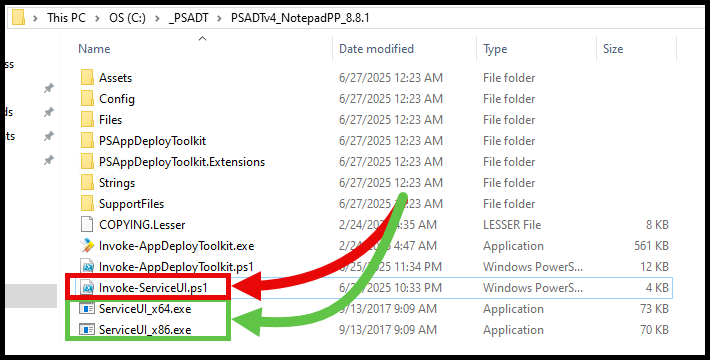
All you need to do is add the ‘Invoke-ServiceUI.ps1’ script to your package.
Remember how we named the ‘ServiceUI’ exe’s? Well this is why:
There are x86 and x64 builds of ServiceUI available in MDT under
Microsoft Deployment Toolkit\Templates\Distribution\Tools. Rename these toServiceUI_x86.exeandServiceUI_x64.exeand place them with this script in the root of the toolkit next toInvoke-AppDeployToolkit.exe.
The script will automatically call the ServiceUI exe based on the machine’s architecture, as long as they named properly.
Install Command #
When utilizing the Invoke-ServiceUI.ps1, use the below command for the Install command
%SystemRoot%\System32\WindowsPowerShell\v1.0\PowerShell.exe -ExecutionPolicy Bypass -NoProfile -File Invoke-ServiceUI.ps1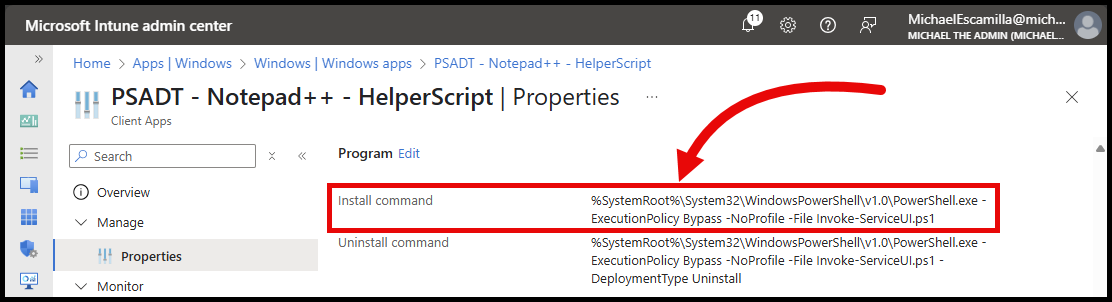
And for the Uninstall command:
%SystemRoot%\System32\WindowsPowerShell\v1.0\PowerShell.exe -ExecutionPolicy Bypass -NoProfile -File Invoke-ServiceUI.ps1 -DeploymentType UninstallGo get interactive! #
Hopefully this information helps.
I’ve only had do this a few times, but each time I’ve had to google and search for the commands again. Not I’ve got them in a place I’ll remember.
Let me know if you have any feedback on this or if I missed any other use tips and tricks for utilizing ServiceUI with your PSADT package for Intune.